eloqua rest vs bulk api, eloqua api, eloqua rest api, eloqua bulk api, eloqua api rate limits, eloqua best practices, eloqua api reference,
Quick Overview
  • Eloqua REST vs bulk API decisions depend on latency needs and data volume.
  • REST API 2.0 works best for real time updates and interactive workflows.
  • Bulk API handles large scale imports, exports, and scheduled synchronization efficiently.
  • Rate limits differ significantly between REST and Bulk in Eloqua’s architecture.
  • Most mature integrations combine both APIs for optimal performance and governance.

Choosing between Eloqua REST vs bulk API is not about personal preference. It is about matching your integration requirements to the technical reality of how Eloqua processes data. If your workflow demands immediate confirmation and precise control over individual records, the Eloqua REST API is typically the right choice. If your integration needs to move thousands of contacts, accounts, or custom data objects reliably and efficiently, the Eloqua Bulk API is usually the better fit. The clearest way to decide is to evaluate latency requirements, data volume, rate limits, and how your system handles failures and retries. Understanding the Eloqua REST vs bulk API comparison helps you make informed architectural decisions.

What is Eloqua REST API 2.0 optimized for?

Eloqua’s REST API 2.0 is a synchronous interface designed for operations that require immediate responses. When you send a request to create, update, or retrieve a record, Eloqua processes it and returns a result in the same transaction. This makes REST ideal for workflows where a user, form, or downstream application is waiting for confirmation before proceeding. When evaluating Eloqua REST vs bulk API for real time scenarios, REST consistently wins on immediacy.

Use Eloqua REST API 2.0 when you need:

  • Immediate feedback: Create or update a single contact, custom object record, or campaign element and confirm success instantly.
  • Fine grained control: Handle individual records with precision, such as updating a lead score or fetching a specific contact by email address.
  • Event driven actions: A form submission triggers a lookup in Eloqua, writes or updates a record, then returns a confirmation to the user interface.
  • Targeted queries: Retrieve filtered datasets using Eloqua’s search and filtering parameters, then act on specific results in real time.

REST also simplifies debugging because each failure is tied to a single request with a clear HTTP response code and error message. For teams building interactive applications, dashboards, or near instant sync workflows, REST feels natural because every operation is visible, traceable, and self contained.

Typical Eloqua REST API use cases:

  • A web application updates a contact profile and must confirm the change before displaying a success message.
  • A custom dashboard loads and calls the Eloqua API to fetch campaign performance metrics or contact activity.
  • A marketing automation trigger fires and needs to enrich one lead record before routing it to sales.

What is Eloqua Bulk API optimized for?

Eloqua’s Bulk API is built for moving large datasets efficiently and reliably. Unlike REST, Bulk operations are asynchronous. You submit a job, upload data in structured formats, allow Eloqua to process the batch, then retrieve results once processing completes. The goal is throughput, stability, and reduced overhead, not instant responses. The Eloqua REST vs bulk API decision becomes straightforward when volume enters the equation: Bulk handles scale far better than REST.

Use Eloqua Bulk API when you need:

  • High volume processing: Importing or exporting thousands or millions of contacts, accounts, or custom data objects.
  • Batch imports and exports: Scheduled synchronization between Eloqua and CRM systems, data warehouses, or external platforms.
  • Backfills and migrations: Historical data loads that would overwhelm REST API rate limits or timeout windows.
  • Stronger recovery patterns: Partial failure handling, structured error logs, retries, and resumable processing for mission critical data flows.

Bulk is more efficient because it reduces per record overhead. Instead of making hundreds or thousands of individual REST calls, you bundle records into a single job. This approach helps you stay within Eloqua’s rate limits and prevents integration collapse under high traffic or burst scenarios.

Typical Eloqua Bulk API use cases:

  • Nightly synchronization of contacts, accounts, and custom object data between Eloqua and Salesforce.
  • Exporting email engagement activity, form submissions, and campaign responses for compliance reporting and analytics.
  • Large scale data cleanup, standardization, or field mapping across years of historical records.

How do Eloqua API rate limits differ between REST and Bulk?

Understanding rate limits is essential when comparing Eloqua REST vs bulk API. Eloqua enforces different rate limits for REST API 2.0 and Bulk API, and these limits directly influence which API you should use for specific integration patterns.

Eloqua REST API rate limits:

Eloqua REST API 2.0 uses a concurrent request model. Each Eloqua instance has a limit on how many simultaneous API calls can be processed. The exact limit depends on your Eloqua subscription tier, but typical limits range from 10 to 20 concurrent requests. If your integration exceeds this threshold, Eloqua returns HTTP 429 errors, and your requests are throttled until capacity is available again.

This means high frequency REST operations can quickly hit limits, especially if multiple integrations or applications are calling the API simultaneously. For use cases involving hundreds or thousands of records, REST becomes inefficient and fragile. This is a key factor in the Eloqua REST vs bulk API evaluation.

Eloqua Bulk API rate limits:

Bulk API operates differently. Instead of counting concurrent requests, Eloqua limits the number of active Bulk jobs and the size of each job. You can typically run multiple Bulk import or export jobs in parallel, and each job can handle tens of thousands of records. Because Bulk bundles records into jobs, you reduce the total number of API calls and avoid the concurrent request bottleneck that affects REST.

For integrations that need to move large datasets predictably, Bulk API’s rate limit structure is far more forgiving and scalable. This makes the Eloqua REST vs bulk API decision clear when you are facing rate limit constraints.

What are the decision signals that matter most when choosing between Eloqua REST vs bulk API?

Four signals make the choice between Eloqua REST vs bulk API clear in most scenarios.

Latency requirement: If a user experience or downstream workflow needs confirmation immediately, choose Eloqua REST API. If waiting minutes or hours for batch processing is acceptable, choose Eloqua Bulk API. Latency is often the first filter in the Eloqua REST vs bulk API decision tree.

Record volume: If you are moving dozens or a few hundred records at a time, REST is often sufficient. If you are moving thousands or tens of thousands of records, Bulk becomes the safer and more efficient default. Volume thresholds clarify the Eloqua REST vs bulk API tradeoff quickly.

Eloqua API rate limits and platform constraints: REST usage can hit concurrent request limits quickly because each record often requires a separate call. Bulk reduces call count by bundling records into jobs. If you routinely see HTTP 429 throttling errors, Bulk is usually the fix. Rate limit behavior is a decisive factor in the Eloqua REST vs bulk API comparison.

Error recovery and observability: REST errors are immediate and localized to a single request. Bulk errors can be delayed and spread across a batch, but Eloqua Bulk API provides structured result files and sync logs that make auditing easier. If you need to prove what happened to every record for compliance or governance, Bulk often produces cleaner evidence trails. Error handling requirements influence the Eloqua REST vs bulk API strategy significantly

What are practical patterns Eloqua teams use in the real world?

eloqua rest vs bulk api, eloqua api, eloqua rest api, eloqua bulk api, eloqua api rate limits, eloqua best practices, eloqua api reference,

Most mature Eloqua integrations use both REST and Bulk APIs together. The Eloqua REST vs bulk API decision is not binary; it is about using each API where it performs best.

Pattern 1: REST for the edge, Bulk for the core – Use Eloqua REST API for interactive operations, real time triggers, and user facing workflows. Use Eloqua Bulk API for scheduled consolidation, nightly syncs, exports, and reconciliation jobs. This pattern reflects the core Eloqua REST vs bulk API principle: immediacy versus scale.

Pattern 2: REST first, then Bulk once volume grows – Teams often start with Eloqua REST API because it is straightforward to implement and test. When the integration scales and rate limits appear, they shift heavy data movement to Bulk while keeping REST for user facing paths and event driven actions. This evolutionary approach to the Eloqua REST vs bulk API question is common in growing organizations.

Pattern 3: Bulk with a REST verification layer – You can run Bulk jobs for large imports or updates, then use Eloqua REST API to spot check key records, validate outcomes, or confirm downstream dependencies before marking the job complete. This hybrid approach demonstrates that the Eloqua REST vs bulk API decision can be complementary rather than exclusive.

Why is this choice also a trust and governance decision?

API selection in Eloqua influences data quality, audit readiness, and customer trust. When REST is misused for large data loads, failures become silent retries, timeouts, and partial updates that are difficult to detect. When Bulk is misused for interactive screens or real time workflows, users experience delays, stale data, and confusing application states. The result is not just technical friction. It is operational uncertainty, and that uncertainty erodes trust with your stakeholders, compliance teams, and end users.

A useful test: if you cannot explain your Eloqua data flow in plain language, you do not fully control it. That is when monitoring, logging, and governance become non negotiable. The Eloqua REST vs bulk API choice carries governance implications that extend beyond technical performance.

Conclusion

Eloqua REST vs bulk API is a choice between immediacy and scale, and the right answer is often a strategic blend: Eloqua REST API 2.0 for interactive control, real time updates, and targeted queries, and Eloqua Bulk API for high volume imports, exports, and resilient batch processing. Making the right Eloqua REST vs bulk API decision for each workflow ensures your integration is both performant and maintainable. If you want a clear mapping of your Eloqua data flows, rate limits, failure modes, and audit readiness, 4Thought Marketing can help you run a practical integration and governance review that turns this into a repeatable standard.

Frequently Asked Questions (FAQs)

What is the main difference between Eloqua REST and Bulk API?
Eloqua REST API is synchronous and designed for immediate, single record operations, while Eloqua Bulk API is asynchronous and optimized for large scale batch processing with better throughput and recovery.
When should I use Eloqua REST API instead of Bulk API?
Use Eloqua REST API when you need real time feedback, are handling small record volumes, or require event driven workflows where downstream systems wait for confirmation.
What are Eloqua REST API rate limits?
Eloqua REST API 2.0 enforces concurrent request limits, typically ranging from 10 to 20 simultaneous requests depending on your subscription tier, and returns HTTP 429 errors when exceeded.
Can I use both Eloqua REST and Bulk API in the same integration?
Yes, most mature Eloqua integrations use both APIs together, leveraging REST for interactive workflows and Bulk for scheduled synchronization and high volume data movement.
How does Eloqua Bulk API handle errors differently than REST?
Eloqua Bulk API provides structured result files and sync logs that detail successes and failures across large batches, making it easier to audit outcomes and implement retries.
Where can I find Eloqua API reference documentation?
Oracle provides official Eloqua REST API 2.0 documentation and Eloqua Bulk API documentation through the Oracle Help Center and Eloqua Developer resources.

Eloqua response rules, campaign response tracking, Eloqua CRM integration, Eloqua campaign responses, Eloqua program canvas, configure response rules, Eloqua response tracking, campaign member status, CRM campaign sync, response rule configuration, campaign response priority, CRM member status mapping, campaign response workflow, set up response rules, troubleshoot Eloqua responses, sync campaign responses,
Key Points at a Glance
  • Eloqua Response rules define what counts as a response in your CRM.
  • CRM response tracking requires a CRM campaign ID.
  • Priority order syncs only the highest value interaction.
  • Processing runs hourly at five minutes past the hour.
  • Program Canvas and Program Builder give the most sync control.

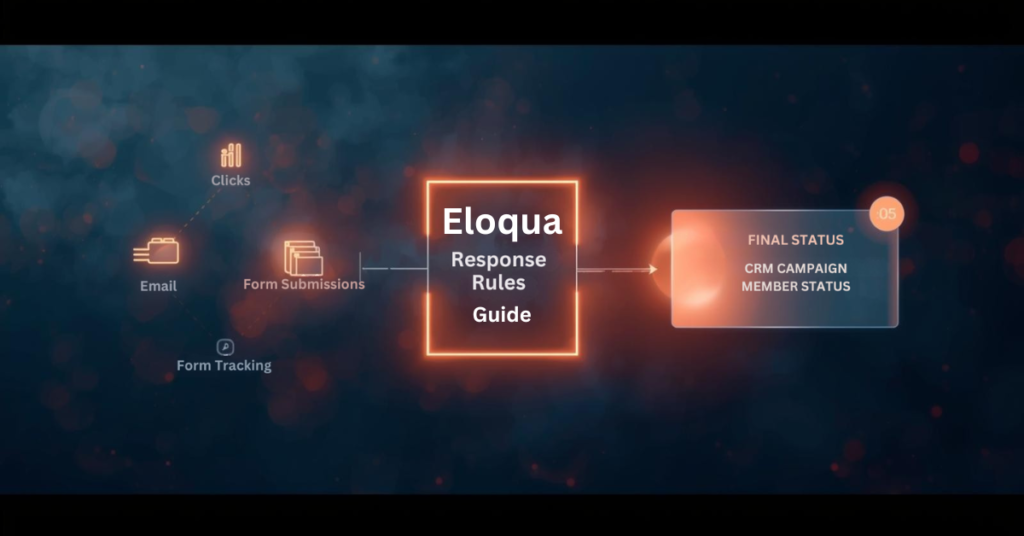
Campaign response tracking connects marketing activities to measurable outcomes in your CRM. When contacts engage with emails, forms, or events, those interactions need proper classification to inform sales teams and attribution models. Eloqua response rules serve as the configuration layer that defines which activities count as responses and how they map to CRM statuses. Without proper setup, valuable engagement data may never reach your CRM, or worse, the wrong status updates could trigger inappropriate workflows. Understanding how Eloqua response rules work ensures your campaign data flows accurately from Eloqua to your CRM, giving sales and marketing teams the insights they need to act on engagement signals.

What exactly are response rules in Eloqua?

Response rules define which campaign activities qualify as responses and determine the CRM status those responses should receive. When contacts interact with your campaigns through email opens, link clicks, form submissions, or event attendance, Eloqua response rules are used to evaluate those interactions against the criteria you have configured and sync qualified activities to your CRM system.

Think of response rules as the execution logic for decisions your sales and marketing teams have already made: which interactions represent engagement worth tracking in the CRM? This configuration connects marketing activity in Eloqua to campaign member records in Salesforce, Microsoft Dynamics, Oracle Sales Cloud, or other CRM platforms.

Response rules consist of three main components:

  • Activity type (what the contact did)
  • CRM member status (how that activity should be labeled in your CRM)
  • Priority order (which status wins when multiple activities occur)

Do I need a special campaign setup to use Eloqua response rules?

Yes. Every Eloqua campaign that tracks responses must include a CRM campaign ID, which links Eloqua contacts to your CRM campaign member records.

When configuring your campaign, place all assets you want tracked as responses on the campaign canvas or within simple campaigns. If you plan to track form submissions or external activities like webinar registrations, these assets must be included on the canvas and share the same campaign ID. Assets living outside the campaign structure or using different campaign IDs will not generate responses in accordance with your rules.

This setup requirement means planning your campaign architecture before launch. You cannot retroactively assign response tracking to activities that occurred without a proper campaign ID association.

Which campaign activities can count as responses?

Five primary activity types for Eloqua response rules:

  • Email sends
  • Email open
  • Email click-through
  • Form submission
  • External activities (webinar registration, webinar attendance, event check-in)

Most marketing operations teams exclude email sends from Eloqua response rules because a send represents a marketing action rather than contact engagement. Similarly, email opens can be unreliable due to limitations in tracking pixels and privacy features in modern email clients.

The most commonly tracked responses include:

  • Email clickthrough — demonstrates active interest
  • Form submission — indicates deeper engagement and data sharing
  • Webinar attendance — shows commitment through time investment
  • Event registration — signals intent to engage further

Your response rule configuration should reflect which activities matter most to your sales and marketing workflows.

How do I map activities to CRM campaign member statuses?

Each response rule maps a specific activity type to a CRM member status value. The status values must match exactly what your CRM expects for campaign members. For Salesforce and Oracle Sales Cloud, common statuses include “Responded,” “Registered,” “Attended,” “Clicked,” or custom values your team has created. For Microsoft Dynamics and other CRM systems, you define equivalent status codes that align with your CRM configuration.

You also designate a default response rule, typically assigned to your lowest priority activity. This default catches any qualifying activities that do not match higher-priority rules, ensuring that all meaningful engagement generates a response. The mapping process requires coordination between your Eloqua administrator and CRM administrator to ensure status values align across both systems. Mismatched status values will cause sync failures or unexpected behavior.

What happens when contacts perform multiple activities on the same campaign?

Priority order becomes critical when contacts engage multiple times. Eloqua sends only the highest-priority responses to your CRM, preventing status downgrades and reducing data noise.

Consider this scenario: A contact receives an email, clicks the link, submits a form, and later attends a webinar. If your priority order ranks webinar attendance first, form submission second, and email click through third, Eloqua will sync only “Attended” to your CRM. Even if the contact clicks the email again after attending the webinar, the CRM status remains “Attended” because Eloqua recognizes that a higher-priority activity has already occurred.

This priority logic ensures your CRM campaign member status reflects the most meaningful interaction, not every interaction. Without proper priority configuration, a contact who attends your webinar might show a status of “Clicked” if the click activity is processed after attendance, creating reporting confusion and potentially triggering incorrect automation. Set priority order based on business value and engagement depth, not chronological order.

How quickly do campaign responses sync to my CRM?

Eloqua does not sync responses to your CRM in real time. Instead, a backend process runs at 5 minutes past each hour to evaluate all campaign activities against your configured Eloqua response rules. This process creates campaign response records in an internal Eloqua table according to the rules and priorities you set. Those response records then become available for your CRM sync workflow to process.

If campaign responses are not appearing in your CRM immediately after a contact clicks or submits a form, timing is often the explanation. The contact may have completed the activity, but the backend evaluation process has not run yet to create the response record. Wait until at least 5 minutes past the hour before investigating further.

After the response record is created, your Program Canvas, Program Builder, or integration rule workflow must still process and send that record to your CRM, which introduces additional timing based on how frequently those workflows run.

What are the methods for sending Eloqua responses to my CRM?

Eloqua response rules, campaign response tracking, Eloqua CRM integration, Eloqua campaign responses, Eloqua program canvas, configure response rules, Eloqua response tracking, campaign member status, CRM campaign sync, response rule configuration, campaign response priority, CRM member status mapping, campaign response workflow, set up response rules, troubleshoot Eloqua responses, sync campaign responses,

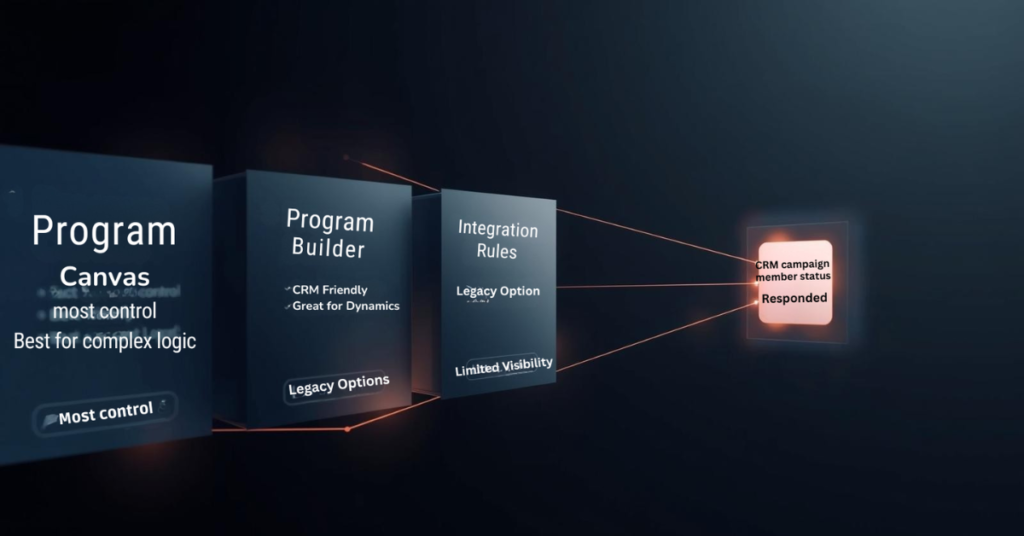
Eloqua offers three primary methods for delivering campaign responses to your CRM: Program Canvas, Program Builder, and Integration Rules.

Program Canvas (available for Salesforce and Oracle Sales Cloud customers using integration apps) provides the most visibility and control. A listener step can trigger automatically when a campaign response is created, feeding records directly into your CRM update workflow. This approach allows you to add filtering, data enrichment, or conditional logic before syncing.

Program Builder offers similar functionality through a different interface, particularly useful for Microsoft Dynamics and other CRM systems.

Integration Rules represent an older approach that still functions but provides less visibility into data flow and troubleshooting capabilities.

Most marketing operations teams prefer the Program Canvas or Program Builder approach because it surfaces the sync workflow visibly, making it easier to diagnose issues, add business logic, and maintain over time.

Can I sync campaign responses to multiple CRM systems simultaneously?

No. The response action feature and Program Builder both limit you to a single CRM system per Eloqua instance. There is no native capability to trigger multiple CRM integrations from one response action.

If your organization requires syncing campaign responses to multiple CRM systems, you will need a workaround. One approach involves creating custom objects for each campaign response, then building separate programs for each CRM that check which CRM ID fields contain values and route responses accordingly. This adds complexity and requires careful data architecture planning.

For most organizations, this limitation is not an issue, as marketing operations typically maintain a single primary CRM for campaign tracking and lead management.

What should I verify before launching campaigns with Eloqua response rules?

Configure Eloqua response rules before sending your first campaign. Once contacts begin engaging, the rules determine what syncs to your CRM, and retroactive changes can create data inconsistencies.

Verify these items during setup:

Match CRM expectations — Confirm that response rule status values exactly match the campaign member statuses your CRM expects. Even small differences in capitalization or spacing will cause sync failures.

Test priority order — Walk through realistic contact journeys where someone engages multiple times. Verify that the highest priority status reaches your CRM regardless of activity timing.

Confirm contact existence — Build your workflow to check that contacts exist in your CRM before attempting to send campaign responses. If a contact record has not been created yet, the response will have nowhere to attach, causing sync errors.

Validate campaign ID assignment — Double-check that all assets you want tracked share the same campaign ID and appear on the campaign canvas or within simple campaigns.

Taking time to configure Eloqua response rules properly prevents troubleshooting headaches later and ensures campaign engagement data flows to your CRM as intended.

Conclusion

Eloqua response rules form the foundation of how campaign engagement data flows from Eloqua to your CRM system. Understanding which activities count as responses, how priority order prevents status downgrades, and when the backend processing creates response records helps marketing operations teams build reliable workflows.

Proper configuration requires coordination between Eloqua administrators and CRM teams to ensure status values align, priority order reflects business value, and sync workflows check for contact existence before sending data. At 4Thought Marketing, we help organizations design and implement Eloqua response rule strategies that ensure accurate campaign tracking and seamless CRM integration. Ready to optimize your Eloqua response rules? Contact our team to discuss how we can help improve your marketing automation workflows.

Frequently Asked Questions (FAQs)

Can I change response rules after a campaign has already started?
Yes, but changes only affect activities that occur after the modification. Existing campaign responses remain unchanged, which can create inconsistencies in reporting.
Why are some campaign responses not appearing in my CRM?
Common causes include mismatched CRM status values, contacts not existing in your CRM yet, missing campaign IDs on assets, or sync workflows not running frequently enough.
Do email opens count as reliable response indicators?
Email opens have become less reliable due to privacy features in email clients that block tracking pixels or pre-load images, making click-throughs and form submissions more trustworthy engagement signals.
Can I use response rules with campaigns that do not have a CRM campaign ID?
No. Response rules require a CRM campaign ID to function because that ID links Eloqua activities to CRM campaign member records.
How often should I review my response rule configuration?
Review response rules quarterly or whenever you launch new campaign types, add CRM member statuses, or notice discrepancies between Eloqua activity and CRM data.
What is the difference between a response rule and a campaign response?
A response rule is the configuration that defines what activities count as responses. A campaign response is the actual record created when a contact performs an activity that matches a rule.

feed eloqua programs, eloqua program feeder, custom objects, cloud custom object feeder,
Key Takeaways
  • Native program feeders execute only once daily
  • Listener steps offer limited filtering flexibility
  • Cloud feeders schedule feeds every few minutes
  • Advanced filter criteria enable precise targeting
  • Frequent feeding accelerates lead response times

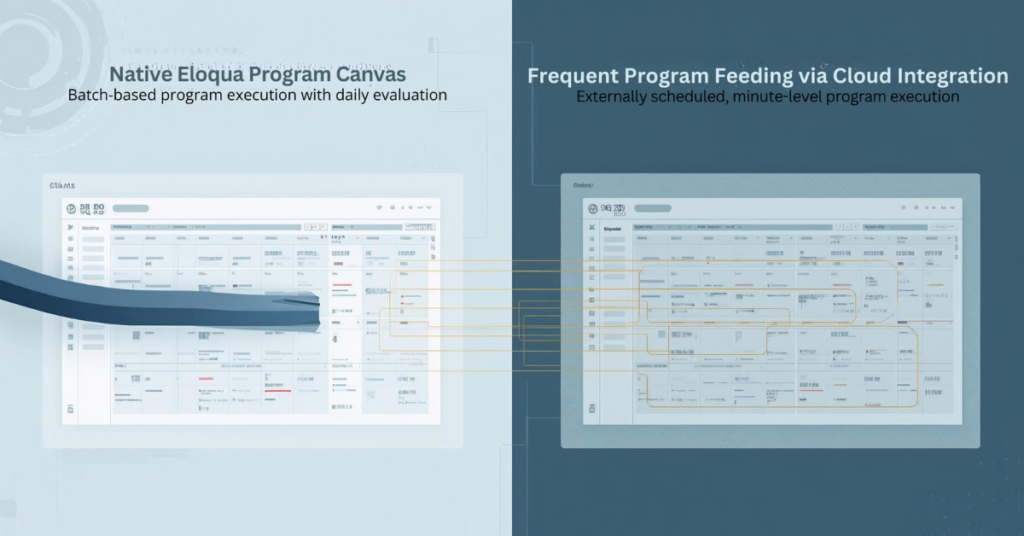
Eloqua Program Canvas delivers powerful automation for contact management and custom object processing. Marketing operations teams rely on program feeders to route contacts through workflows based on lead stage changes, form submissions, and database updates. But native Eloqua program feeders impose a significant constraint: they only evaluate and feed Eloqua programs once every 24 hours. This limitation creates delays when your automation demands real-time responsiveness, such as immediately routing MQLs to sales or triggering custom object updates within minutes of a status change. Cloud-based solutions now enable marketers to bypass these restrictions, feeding contacts and custom object records to programs multiple times per day with flexible scheduling and advanced filtering that native listeners cannot provide.

Why Are Eloqua Program Feeders Limited to Daily Execution?

Eloqua’s native program feeder architecture evaluates segments and shared filters on a 24-hour cycle to balance system performance across large contact databases. While listener steps offer real-time triggers for specific events like lead score changes or new contact creation, they support only a narrow set of data sources. If you need to feed Eloqua programs based on custom field changes, specific lead stage transitions, or complex filter criteria involving custom objects, native listeners fall short.

For example, a listener can monitor when a contact’s lead score increases, but it cannot trigger on a lead stage field changing from “Inquiry” to “MQL” unless you configure contact field tracking (limited to three tracked fields per instance). Similarly, segment-based program feeders provide robust filtering capabilities but refresh only once daily. This gap leaves marketing operations teams unable to respond immediately to critical pipeline events without workarounds.

The technical reason behind these limitations lies in database query load. Continuously evaluating complex filter criteria against millions of contact records in real time would strain system resources. Oracle designed the daily cycle to maintain platform stability, but this design choice creates friction for teams running time-sensitive automation workflows.

What Happens When You Need Real-Time Program Feeding?

Consider two common scenarios where daily program feeds create operational bottlenecks:

Use Case 1: Lead Stage Progression

Your demand generation team runs campaigns that move contacts from “Inquiry” to “MQL” status based on form submissions and engagement scoring. When a contact crosses the MQL threshold, you want them routed immediately to a Program Canvas that assigns account ownership, syncs to CRM, and triggers a sales alert. With a native segment feeder running once daily, newly qualified leads wait up to 24 hours before entering the program. This delay reduces speed-to-lead and impacts conversion rates.

Use Case 2: Custom Object Updates

You maintain a custom object that tracks product interest by account. When a custom object record updates to reflect a customer requesting a demo for a specific product line, you need that record processed immediately through a program that updates account scoring and notifies the relevant sales rep. Native custom object program feeders evaluate once daily, meaning demo requests sit unprocessed for hours.

In both scenarios, the inability to feed Eloqua programs on demand creates missed opportunities. Marketing automation should accelerate pipeline velocity, not introduce delays. Teams need the flexibility to schedule program feeds based on business requirements rather than platform constraints.

How Do Cloud Feeders Solve Eloqua’s Program Feeding Limitations?

Cloud-based feeder applications integrate with Eloqua Program Canvas as custom data sources, enabling marketers to feed contacts and custom object records to programs on flexible schedules. Unlike native segment feeders that run once daily, cloud feeders can execute every few minutes, providing near-real-time program feeding without the limitations of listener steps.

The Contact Cloud Feeder and Custom Object Cloud Feeder from 4Thought Marketing address this gap by offering:

  • Advanced filtering with segments or shared filters: Use the full power of Eloqua’s filtering logic, including complex criteria based on contact fields, custom object data, and activity history
  • Customizable execution frequency: Schedule program feeds to run every 5, 10, or 15 minutes instead of waiting 24 hours
  • On-demand triggering: Push contacts or custom object records into programs immediately when needed
  • No listener limitations: Bypass the restricted data sources available to native listener steps

Comparison: Native vs. Cloud Feeder Capabilities

Feature Native Segment Feeder Native Listener Step Cloud Feeder
Execution Frequency Once per 24 hours Real-time (specific triggers) Every few minutes (customizable)
Filter Flexibility Full segment/filter logic Limited to lead score, contact creation, field tracking (max 3 fields) Full segment/filter logic
Custom Object Support Limited to daily feeds Not supported Full support with flexible scheduling
Use Case Fit Batch processing, periodic updates Specific real-time triggers Time-sensitive workflows requiring custom filtering

Cloud feeders combine the filtering power of segments with the responsiveness teams need for modern marketing automation workflows.

feed eloqua programs, eloqua program feeder, custom objects, cloud custom object feeder,

How to Set Up Frequent Program Feeding with Cloud Apps

Configuring a cloud feeder to feed Eloqua programs follows a straightforward process within Program Canvas:

Step 1: Configure Your Filter Criteria Determine which contacts or custom object records should enter the program. Cloud feeders accept either an Eloqua segment or a shared filter as the source. If you need to feed contacts when their lead stage changes to “MQL,” create a segment that includes contacts where Lead Stage equals “MQL” and Date Modified is within the last hour. This ensures only recently updated records enter the program.

Step 2: Set Execution Frequency Instead of accepting the default 24-hour cycle, specify how often the cloud feeder should evaluate your filter criteria. For time-sensitive workflows, configure the feeder to run every 5 or 10 minutes. The execution frequency field supports minute-based intervals, enabling near-real-time program feeding without manual intervention.

Step 3: Connect to Your Program Canvas Add the cloud feeder as a data source in your contact or custom object program. The feeder appears in the Program Canvas alongside native segments and listeners. Once connected, activate the program. The cloud feeder begins evaluating your filter criteria according to the schedule you defined, automatically feeding matching records into subsequent program steps.

Step 4: Monitor and Optimize After activation, monitor program member counts and processing times. If records aren’t entering as expected, verify your filter criteria and execution frequency settings. Adjust the schedule based on volume—high-volume workflows may benefit from slightly longer intervals to balance throughput with system performance.

What Are the Benefits of Feeding Programs Every Few Minutes?

Frequent program feeding delivers measurable improvements across multiple dimensions of marketing operations performance:

Faster Response to Buyer Signals When a contact downloads a high-value asset or requests a demo, immediate program entry enables instant lead routing and sales notification. Instead of waiting hours for the next segment refresh, your team responds while the buyer’s interest peaks. This reduces time-to-contact from 24 hours to minutes.

Improved Lead Routing Speed Speed-to-lead directly impacts conversion rates. Studies consistently show that contacting leads within five minutes of their inquiry produces significantly higher connect and conversion rates than waiting an hour or longer. Frequent program feeding ensures qualified leads reach sales queues immediately after crossing qualification thresholds.

Enhanced Program Personalization Real-time custom object processing enables dynamic content personalization based on the latest account data. When a custom object record updates with new product interest information, feeding that record into a program within minutes allows you to trigger personalized follow-up campaigns while context remains fresh.

Real-Time Custom Object Processing For organizations leveraging custom objects to track complex account relationships or product configurations, frequent feeding transforms custom object programs from batch processors into responsive automation engines. Demo requests, renewal triggers, and support escalations can all flow through programs as they occur rather than accumulating for daily processing.

How to Choose Between Contact and Custom Object Cloud Feeders

Selecting the appropriate cloud feeder depends on your automation workflow and data model:

Use Contact Cloud Feeder When:

  • Your program processes individual contacts through nurture streams, lead routing, or data enrichment
  • Filter criteria focus on contact fields, lead scores, or email activity
  • You need to trigger programs based on lead stage changes, form submissions, or campaign responses
  • The program updates contact records or adds contacts to campaigns and shared lists
Use Custom Object Cloud Feeder When:

  • Your program processes custom object records representing opportunities, product interests, or account relationships
  • Filter criteria evaluate custom object fields or linked contact data
  • You need to trigger workflows when custom object records are created or updated
  • The program performs actions on custom object data, such as updating fields or deleting records
Can You Use Both Together?

Yes. Many sophisticated automation workflows combine both feeder types. For example, a custom object program might process product interest records and use the “Add Linked Contact to Program” action to push the associated contact into a separate contact program. This enables you to process custom object logic at high frequency while maintaining clean separation between object-level and contact-level automation.

When architecting multi-stage workflows, consider which data entity (contact or custom object) serves as the primary trigger, then design your program canvas and feeder configuration accordingly.

Conclusion

Native Eloqua program feeders limit automation responsiveness by restricting segment evaluation to once-daily cycles, while listener steps provide real-time triggers for only a narrow set of use cases. Cloud feeders eliminate these constraints, enabling marketing operations teams to feed Eloqua programs multiple times per day with full access to segment and shared filter criteria. This flexibility transforms program canvas from a batch processing tool into a dynamic automation engine capable of responding to pipeline events within minutes.

Whether routing MQLs immediately after qualification or processing custom object updates in near-real-time, frequent program feeding accelerates marketing operations and improves buyer experience. Explore how Contact Cloud Feeder and Custom Object Cloud Feeder can reduce your response times and enhance workflow precision.

Frequently Asked Questions (FAQs)

Can you feed Eloqua programs more than once per day?
Yes, cloud feeders enable program feeds to run every few minutes instead of the native 24-hour cycle, providing near-real-time automation.
How often can cloud feeders run?
Cloud feeders support execution frequencies as short as every 5 minutes, allowing you to balance responsiveness with system performance based on your workflow requirements.
What filtering options are available with cloud feeders?
Cloud feeders accept any Eloqua segment or shared filter, providing full access to contact fields, custom object data, activity history, and complex Boolean logic.
Do frequent program feeds impact Eloqua performance?
When configured appropriately, frequent feeds have minimal performance impact. Start with 10-15 minute intervals and adjust based on contact volume and program complexity.
Can I schedule feeds to run every 5 minutes?
Yes, cloud feeders support minute-based scheduling, enabling you to configure execution frequencies as short as every 5 minutes for time-critical workflows.
Is this compatible with all Eloqua program types?
Cloud feeders integrate with both contact programs and custom object programs in Eloqua Program Canvas, supporting the full range of program automation capabilities.

campaign responses, Eloqua campaign responses, marketing automation campaigns, email campaign tracking, bulk campaign actions, campaign canvas Eloqua, marketing automation workflows, campaign member responses, lead nurturing automation, email response tracking,


Key Takeaways
  • Create multiple campaign responses simultaneously using bulk actions
  • Duplicate response settings across campaign steps instantly
  • Ensure consistency in tracking across marketing automation workflows
  • Save hours on repetitive campaign configuration tasks
  • Ideal for multi-step email campaigns and lead nurturing sequences

Setting up campaign responses in Eloqua typically means configuring each one manually—a process that works fine for simple, single-step campaigns. But when you’re managing complex email sequences with multiple touchpoints, this approach quickly becomes time-consuming and prone to inconsistencies across your marketing automation workflows.

The repetitive nature of configuring individual campaign responses creates bottlenecks, especially when your lead nurturing automation requires identical tracking across dozens of steps. You end up copying the same settings over and over, increasing the risk of configuration errors that can compromise your email campaign tracking.

There’s a faster way. By using bulk campaign actions in Eloqua’s campaign canvas, you can create multiple campaign responses at once—duplicating all settings across steps in seconds. This approach maintains consistency in your campaign member responses while cutting setup time dramatically, allowing you to focus on strategy rather than repetitive configuration work.

Why Campaign Response Management Matters

Before diving into the tutorial, it’s worth understanding why efficient campaign response setup matters for your marketing automation workflows. Every campaign response you configure creates a data point that feeds into your lead nurturing automation, scoring models, and reporting dashboards. When you’re running email campaign tracking across dozens of touchpoints, inconsistent response configuration can create gaps in your data—leading to inaccurate insights and missed opportunities.

Campaign member responses serve as the foundation for understanding how contacts interact with your campaigns. Whether someone opened an email, clicked a specific link, or completed a form, each action generates a response that your Eloqua campaign canvas uses to determine next steps. The challenge isn’t just creating these responses—it’s creating them consistently and efficiently across complex, multi-step campaigns.

The Manual Approach vs. Bulk Campaign Actions

Traditionally, marketers configure campaign responses one step at a time. You add an email send step, configure its responses (open, click, bounce), move to the next step, and repeat the process. For a simple three-email sequence, this means configuring responses at least three separate times. For a comprehensive lead nurturing automation with ten or more touchpoints, you’re looking at hours of repetitive work.

Bulk campaign actions change this dynamic entirely. Instead of configuring responses individually, you set them up once and duplicate those settings across all relevant steps simultaneously. This approach ensures every email in your sequence tracks the same response types with identical naming conventions—critical for clean reporting and accurate marketing automation campaigns.

Step-by-Step: Creating Multiple Campaign Responses

Step 1: Build Your Campaign Structure First

Start by adding all your email send steps to the campaign canvas before configuring any responses. This gives you a complete view of your workflow and helps you identify which steps need response tracking. For most email campaign tracking scenarios, you’ll want consistent responses across all send steps—opens, clicks, and bounces at minimum.

Step 2: Configure Your First Response Set

Select your first email send step and add all the campaign responses you need. Be thorough here because these become your template. Common responses include:

  • Email opened
  • Email clicked
  • Email bounced
  • Specific link clicks (if using multiple CTAs)
  • Unsubscribes

Give each response a clear, descriptive name that includes the email identifier. For example: “Email 1 – Opened” rather than just “Opened.” This naming convention becomes crucial when analyzing campaign member responses across multiple touchpoints in your reporting.

Step 3: Copy Your Configured Response Steps

Once your first set of responses is configured, select all those response steps in the campaign canvas (you can click and drag to select multiple elements, or use Ctrl+Click to select individual steps). Then copy them using Ctrl+C (Windows) or Cmd+C (Mac).

Step 4: Paste Responses to Remaining Steps

Navigate to your second email send step, select it, and paste using Ctrl+V (Windows) or Cmd+V (Mac). Eloqua duplicates all response configurations instantly—including response types, naming patterns, and any associated wait steps or decision logic.

Repeat this paste action for each remaining email send step in your campaign. What would have taken 30-45 minutes to configure manually now takes less than two minutes.

Step 5: Update Response Names for Context

After pasting, update the response names to reflect each specific email. Change “Email 1 – Opened” to “Email 2 – Opened,” “Email 3 – Opened,” and so on. This maintains consistency in response structure while providing clear context in your marketing automation workflows.

This naming strategy pays dividends when you’re analyzing campaign performance or troubleshooting issues. Instead of seeing generic “Opened” responses scattered across your reports, you’ll have clearly labeled campaign member responses that tell you exactly which email generated each interaction.

Step 6: Verify and Activate

Before activating your campaign, verify that each email step has its complete set of responses properly configured and named. Check that response logic flows correctly—opens should connect to click evaluation, clicks should trigger appropriate follow-up actions, and bounces should remove contacts from the sequence.

This verification step catches any paste errors or naming oversights before they affect your live marketing automation campaigns. Once confirmed, activate your campaign knowing that your email campaign tracking is consistent, accurate, and ready to deliver reliable data.

Best Practices for Scalable Response Management

As you implement this bulk campaign actions approach, keep these best practices in mind:

  • Standardize your response naming conventions across all campaigns. This makes cross-campaign reporting significantly easier and helps new team members understand your campaign canvas structure quickly. This approach aligns with campaign tracking best practices recommended by marketing automation experts.
  • Document your response templates so anyone on your team can replicate this approach. This technique integrates seamlessly into a broader for maximum efficiency. Create a quick reference guide showing your standard response set and naming patterns.
  • Review response data regularly to ensure your tracking captures the insights you need. If certain responses consistently show zero activity, consider whether they’re necessary or if your campaign design needs adjustment.
  • Combine response tracking with lead scoring to maximize the value of your campaign member responses. Each tracked interaction becomes an opportunity to refine lead quality assessments and prioritize sales follow-up.

Conclusion

Creating multiple campaign responses at once transforms your Eloqua workflow efficiency. What once required manual configuration for every single step now happens in seconds through bulk campaign actions, ensuring consistency across your email campaign tracking and lead nurturing automation.

Yet efficiency alone isn’t enough—your marketing automation workflows must scale as your campaigns grow more sophisticated. Campaign member responses need accurate tracking, and your team needs processes that reduce errors while maintaining the flexibility to adapt quickly.

That’s where strategic campaign management makes the difference. At 4Thought Marketing, we help B2B marketers optimize their Eloqua campaigns and build marketing automation workflows that scale. Whether you’re streamlining your campaign production process or developing a comprehensive marketing automation strategy, our campaign management services team specializes in turning complex workflows into competitive advantages.

Frequently Asked Questions (FAQs)

How do I create multiple campaign responses at once in Eloqua?
Configure all responses for your first campaign step, then copy those response steps and paste them to each subsequent step in your campaign canvas. This duplicates all settings instantly, eliminating manual configuration for each step.
What are campaign responses in marketing automation?
Campaign responses are tracking mechanisms that record contact interactions with specific campaign elements—such as email opens, clicks, form submissions, or page visits. They enable automated follow-up actions and provide data for lead scoring and reporting.
What is the difference between campaign response and email response in Eloqua?
Email responses track interactions at the asset level (opens and clicks on any email), while campaign responses track interactions within a specific campaign workflow. Campaign responses provide context about where contacts are in your nurture sequence and trigger subsequent campaign steps.
Why should I create multiple campaign responses instead of configuring them individually?
Bulk response creation ensures consistency across your workflow, reduces setup time by 60-70%, and minimizes configuration errors. When managing lead nurturing automation with ten or more touchpoints, this approach saves hours while maintaining data accuracy.
Can I automate campaign response tracking for all email sends in Eloqua?
Yes, by creating standardized response templates and using the copy-paste method across your campaign canvas, you can automate consistent tracking for every email send. Combine this with naming conventions that include email identifiers for cleaner reporting.
How do campaign responses support lead management and scoring?
Campaign responses feed directly into lead scoring models by providing behavioral data points. Each tracked interaction—opens, clicks, content downloads—can adjust lead scores automatically, helping sales teams prioritize follow-up based on engagement levels across your marketing automation campaigns.

Eloqua Salesforce integration, marketing automation integration, CRM integration audit, Eloqua custom objects, contact field mapping, integration errors, data synchronization, CRM data quality,
Key Takeaways
  • Custom object sync failures trap lead intelligence in Eloqua
  • Field bloat creates mapping chaos approaching capacity limits
  • Silent errors cause lead routing failures and revenue loss
  • Most organizations lack integration health monitoring infrastructure
  • Early detection prevents expensive emergency remediation efforts

Eloqua Salesforce integration represents the most critical connection in enterprise marketing technology stacks, yet system assessments consistently expose severe data integrity failures. Auditors discover custom objects that never sync to Salesforce, contact field architectures approaching platform limits, and silent errors causing leads to disappear between systems. These failures manifest as sales teams missing critical lead intelligence, marketing operations performing daily manual interventions, and revenue opportunities lost because prospect data never reaches CRM. As detailed in our marketing automation audit guide, integration integrity represents a foundational health factor where failures create direct revenue impact. The following scenarios demonstrate the most common Eloqua Salesforce integration failures that comprehensive evaluations uncover and why organizations need proactive monitoring rather than reactive problem-solving.

Scenario 1: Custom Object Sync Gap Reduces Lead Intelligence

What the Audit Revealed

When evaluators examined a mid-market B2B software company’s Eloqua Salesforce integration, they discovered critical synchronization failures:

  • Custom objects storing lead intelligence are not synchronized to CRM
  • Event registration data, product interest signals, and behavioral scores existed only in Eloqua
  • Three years of webinar attendance and content downloads invisible to sales teams
  • Product demo requests existed only in Eloqua, while sales worked from incomplete Salesforce data

Root Cause Analysis

The custom object architecture was designed to address Eloqua reporting requirements without considering the implications for Eloqua Salesforce integration. Marketing operations designed custom objects for campaign tracking and lead scoring calculations, assuming this data would be accessible when needed. However, the team never mapped these custom objects to corresponding Salesforce objects because the initial integration configuration only covered standard contact and account fields. As campaign sophistication increased and more behavioral data flowed into custom objects, the gap between Eloqua’s more complete view and Salesforce’s limited visibility widened significantly.

Business Impact

The sync failure created measurable revenue and operational consequences:

  • Sales teams consistently undervalued high-engagement prospects, missing behavioral intelligence
  • Territory managers prioritized cold prospects over warm leads with engagement history
  • Leads with custom object scores above 75 converted at 3x higher rates but sales couldn’t access scores
  • Marketing-sales alignment deteriorated as each team blamed the other for poor lead quality
  • Revenue impact from missed opportunities and inefficient resource allocation across territories

Remediation Approach

The organization required a custom object architecture redesign, ensuring Salesforce compatibility from the initial design. This strategic approach—implemented through 4Thought Marketing’s Eloqua Salesforce integration expertise—involved mapping Eloqua custom objects to Salesforce custom objects with proper parent-child relationships, establishing bidirectional sync for behavioral data, and implementing real-time updates rather than batch processing. The solution included external activity tracking for engagement signals and custom object field mapping that preserved data integrity across systems. Integration monitoring provided visibility into sync job success rates and automated alerting when failures occurred.

Prevention Framework

Custom object architecture must consider CRM integration requirements during initial design rather than as afterthought. Teams should map data flow from Eloqua custom objects through to Salesforce before building campaign infrastructure that depends on this data. Regular integration health checks verify that custom object data synchronizes correctly and completely. Documentation should specify which custom objects sync to Salesforce, mapping relationships, and business justification for any data remaining Eloqua-only.

Scenario 2: Contact Field Architecture Approaching Capacity Limits

What the Audit Revealed

A global enterprise technology firm’s system evaluation exposed severe contact field management issues:

  • Active contact fields in Eloqua approaching the 250-field capacity limit
  • Duplicate fields storing identical information with naming variations
  • Dozens of fields created for one-time campaigns still actively syncing to Salesforce
  • Fields with mappings pointing to incorrect or deprecated CRM fields
  • Excessive contact fields in Salesforce creating confusion about authoritative data sources

Root Cause Analysis

Field proliferation occurred due to a lack of governance and the loss of institutional knowledge during team transitions. Marketing operations professionals created new fields without verifying whether similar fields already existed, as there was no centralized documentation cataloging the existing architecture. The “Company_Name” versus “CompanyName” versus “Account_Name” pattern repeated across multiple data categories. Teams working on urgent campaign launches prioritized speed over architecture review, creating temporary fields that became permanent fixtures. When Eloqua administrators changed roles, their undocumented field decisions became organizational mysteries that subsequent team members worked around rather than rationalized.

Business Impact

Field architecture chaos created operational and strategic consequences:

  • Data quality deteriorated as teams couldn’t determine which fields contained accurate information
  • Segmentation became unreliable with multiple fields storing job titles showing different values
  • Performance degradation from hundreds of unnecessary fields synchronizing on every integration run
  • Approaching a system field capacity limit blocked new business requirements until consolidation occurred
  • Marketing operations spent 15 hours weekly reconciling data across duplicate fields
  • Sales confidence in data accuracy eroded due to inconsistent contact information across systems

Remediation Approach

The firm needed a comprehensive field architecture rationalization combining audit, consolidation, and ongoing governance. This systematic approach—guided by 4Thought Marketing’s consultants—began with a thorough field inventory that documented purpose, usage frequency, Salesforce mapping, and the business owner. The analysis identified consolidation opportunities where multiple fields could merge into a single authoritative source. Migration workflows transferred data from deprecated fields to standardized replacements before deactivating obsolete fields. New governance established naming conventions, required architectural review before field creation, and maintained living documentation of field purposes and mappings. The cleanup reduced the number of active fields by 38%, thereby improving data quality and integration reliability.

Prevention Framework

Field governance prevents architecture decay through documented standards and mandatory review processes. Organizations should maintain field inventories that catalog the purpose, mapping, usage, and ownership of every contact field. Creating new fields requires checking existing architecture first and obtaining approval from data governance authority. Quarterly field audits identify candidates for deprecation or consolidation. Integration mapping documentation prevents fields from pointing to incorrect Salesforce destinations. Field capacity monitoring provides early warning before approaching platform limits.

Scenario 3: Silent Integration Errors Causing Lead Routing Failures

What the Audit Revealed

During infrastructure assessment of a financial services organization’s Eloqua Salesforce connection, evaluators discovered silent integration failures:

  • Integration errors occurred daily but remained invisible to marketing operations
  • Error logs showed thousands of failed sync attempts over 90 days
  • Leads stuck in Eloqua awaiting CRM sync that would never complete
  • Opt-out requests not propagating to Salesforce allowing unwanted communications
  • Salesforce updates failing to return to Eloqua causing duplicate records and data conflicts

Root Cause Analysis

Eloqua Salesforce integration, marketing automation integration, CRM integration audit, Eloqua custom objects, contact field mapping, integration errors, data synchronization, CRM data quality,

The Eloqua Salesforce integration was configured during initial Eloqua implementation but monitoring and testing process was never established. Marketing operations assumed that Eloqua Salesforce integration either worked completely or failed catastrophically with obvious symptoms. The team didn’t realize that partial failures—individual records failing while bulk sync completed—occurred silently without alerting anyone. API rate limits occasionally triggered when campaign volumes spiked, causing batch operations to fail mid-process. Error logs existed in both Eloqua and Salesforce but no one reviewed them systematically. When sales complained about missing leads, marketing operations investigated individual cases reactively rather than identifying systemic patterns.

Business Impact

Silent integration failures created direct revenue and compliance consequences:

  • Revenue opportunities disappeared when high-value leads never routed to sales territories
  • Territory managers received incomplete lead assignment due to sync failures
  • Customer experience suffered when opt-out requests didn’t sync causing continued communications
  • Compliance risk emerged from inability to demonstrate preference changes honored across systems
  • Sales credibility with marketing eroded as “where’s my lead” escalations became routine
  • Marketing operations transformed from strategic function into daily firefighting and manual interventions

Remediation Approach

The organization required comprehensive Eloqua Salesforce integration monitoring combining automated health checks, error alerting, and recovery workflows. This proactive methodology—implemented using 4Thought Marketing’s integration monitoring frameworks—included scheduled validation comparing Eloqua and Salesforce record counts to identify sync gaps, automated alerts when error rates exceeded thresholds, dashboard visibility into integration health metrics, and documented escalation procedures when failures occurred.

The solution established error recovery workflows that automatically retried failed syncs and flagged records requiring manual intervention. API rate limit monitoring prevented threshold breaches by scheduling intensive operations during low-activity periods. The monitoring process transformed Eloqua Salesforce integration management from reactive troubleshooting to proactive optimization.

Prevention Framework

Integration health monitoring must be implemented as core infrastructure component rather than optional enhancement. Organizations should establish automated validation comparing source and destination systems to detect sync gaps. Error log review should occur on scheduled basis rather than waiting for user complaints. Eloqua Salesforec integration dashboards provide real-time visibility into sync job success rates, API consumption, and failure patterns. Automated alerting notifies responsible teams immediately when error thresholds are breached. Recovery workflows should handle transient failures automatically while escalating persistent issues requiring investigation.

Conclusion

System evaluations consistently reveal that Eloqua Salesforce integration, despite being the most common enterprise marketing technology connection, suffers from custom object sync failures, contact field architecture chaos, and silent error patterns that cause significant revenue impact. These failures develop gradually through governance gaps and insufficient monitoring rather than catastrophic technical breakdowns. As detailed in our marketing automation audit guide, integration integrity represents one of five critical health factors determining whether marketing automation systems can scale reliably.

Organizations conducting systematic integration assessments identify these vulnerabilities when remediation remains straightforward and inexpensive. Waiting until sales escalations force emergency response transforms preventable issues into crisis remediation requiring significant resources. 4Thought Marketing’s Eloqua integration expertise helps organizations design custom object architecture for Salesforce compatibility, rationalize contact field infrastructure, and implement monitoring frameworks that prevent silent failures before they impact revenue operations.

Frequently Asked Questions (FAQs)

What causes Eloqua custom objects to fail syncing with Salesforce?
Custom object sync failures typically result from architecture designed without Eloqua Salesforce integration planning, missing object mapping between systems, incorrect parent-child relationship configuration, or field data type mismatches. Organizations often build custom objects for Eloqua reporting purposes without establishing corresponding Salesforce objects and mapping relationships. API limitations and insufficient error monitoring compound these architectural issues.
How many contact fields can Eloqua support before hitting capacity limits?
Eloqua supports 250 total contact fields combining standard system fields and custom fields that organizations create. This hard limit includes both active fields and those marked inactive but not deleted. Organizations approaching this threshold cannot create new fields until existing fields are permanently removed, making field governance critical for maintaining platform scalability and flexibility.
Why do Eloqua Salesforce integration errors go undetected for extended periods?
Integration errors remain invisible because partial failures affect individual records while bulk operations complete successfully, creating perception that integration functions properly. Error logs exist but require manual review that many organizations never implement. Teams assume catastrophic failures would be obvious when reality shows gradual degradation through accumulating individual record failures that only become apparent through user complaints.
What is the difference between Eloqua custom objects and Salesforce custom objects?
Eloqua custom objects store related data sets like event registrations or product interests with parent-child relationships to contacts, primarily for segmentation and reporting. Salesforce custom objects extend CRM data model for business-specific requirements. While conceptually similar, they require explicit mapping and integration configuration to synchronize. Architectural differences mean custom objects built for Eloqua functionality may not map cleanly to Salesforce without redesign.
How often should organizations audit Eloqua-Salesforce integration health?
Comprehensive integration audits examining custom object sync, field mapping, and error patterns should occur annually as part of broader system health assessments. Monthly reviews of integration error logs and sync job success rates provide ongoing monitoring. Weekly validation of critical integration points—lead routing, opt-out synchronization, and high-priority data fields—ensures business-critical functions remain operational.
Can contact field consolidation be performed without data loss?
Yes, through systematic migration workflows that transfer data from deprecated fields to standardized replacements before deactivation. The process requires careful planning including data mapping, identifying authoritative sources when multiple fields contain conflicting information, testing consolidation logic before production deployment, and maintaining backup data. Organizations should document which fields consolidated into which replacements for audit trail purposes and future reference.

Oracle Eloqua custom objects, Eloqua custom objects best practices, Eloqua custom objects data manipulation, Eloqua data management, Eloqua Program Canvas automation, Eloqua data architecture, Eloqua REST API updates, Eloqua CO transformation, Eloqua marketing automation workflows, Custom object governance in Eloqua, Cleaning Eloqua CO data,
Key Takeaways
  • Custom objects support flexible data models for complex marketing operations.
  • Native features now allow cleaner governance and more efficient management.
  • Advanced data manipulation requires thoughtful structure and automation.
  • Program Canvas and the REST API expand transformation capabilities.
  • A scalable custom object architecture strengthens long-term data quality.

Oracle Eloqua custom objects offer a flexible data layer that enables marketers to store structured information that does not fit within standard contact fields. They support detailed behavioral history, recurring events, and multistep journeys that require reliable tracking. As more campaigns rely on personalization, these structures become essential to Eloqua data management and long-term program accuracy.

As the number of custom objects grows, their behavior, automation paths, and update rules require thoughtful planning to ensure stability. Without a clear strategy, teams’ risk inaccurate segments, broken journeys, and inconsistent records. This blog explains how to utilize modern Eloqua custom objects best practices to manage data at scale, approaches advanced custom objects data manipulation, and outlines the design of an Eloqua data architecture that supports both daily operations and future growth.

What is Custom Objects and Why Do They Matter?

Oracle Eloqua custom objects are multi-record tables linked to a contact or account, used when a single person or company can have many related interactions. They matter because most marketing data changes frequently and needs historical tracking that standard contact fields cannot support.

These structures enable teams to manage renewals, subscriptions, transactions, and product usage within a single relational layer. When used thoughtfully, custom objects enhance segmentation accuracy, support personalized journeys, and provide Program Canvas automation with a deeper foundation to work with. For example, a subscription-based business may track every renewal date inside a custom object rather than storing only the most recent version. This supports more accurate reminders, personalized upsell workflows, and long-term customer lifecycle automation.

Custom objects become even more valuable when organizations manage multiple product lines or maintain ongoing customer interactions. Each row tells a story about a behavior, purchase, or action, which helps marketers understand trends that individual fields cannot capture. This is why strong custom object governance in Eloqua is crucial for both operational reliability and strategic decision-making.

What Can Eloqua do with Custom Objects and Where Are the Limits?

Standard Eloqua features include storing records, updating fields, routing data through Program Canvas, and triggering Eloqua marketing automation workflows. These functions support most basic use cases but fall short when teams require multirow calculations or conditional transformations.

Native features cannot compare multiple records, calculate new values, or perform structured Eloqua CO transformation across large datasets. If a renewal date needs to be advanced, if multiple usage rows must be aggregated, or if conditional logic depends on historical interactions, standard tools cannot execute these steps alone. As a result, advanced operations rely on a combination of Program Canvas automation and Eloqua REST API updates to fill these gaps.

A related limitation appears when cleaning Eloqua custom object data. Basic updates can correct small inconsistencies, but they do not support the systematic cleanup that high volume environments require. Data imported from multiple systems may contain inconsistent formats, spacing errors, or missing link fields. These issues can block segmentation or cause workflows to misroute contacts. For these reasons, advanced manipulation becomes a structured practice rather than an occasional task.

What Data Manipulation Needs Do Marketing Teams Commonly Encounter?

Most manipulation needs come from recurring business processes that depend on accurate, timely custom object data. As personalization increases, Eloqua custom objects data manipulation becomes central to keeping campaigns consistent and meaningful.

Many organizations track ongoing events such as renewals, product usage milestones, support interactions, or purchase cycles. Each of these events becomes a row within the custom object. When rules change or lifecycle programs expand, hundreds or thousands of rows may need recalculations. Program Canvas can detect new activity but cannot fully execute transformations, which is where external logic becomes necessary.

Another common scenario involves synchronizing multiple objects. A contact may have usage data in one object and entitlement data in another. If one changes, the other must remain aligned to prevent errors during segmentation. Integrations also introduce challenges. When two systems send data into Eloqua, formatting inconsistencies appear. Cleaning Eloqua CO data becomes essential before the information can enter active campaigns.

These patterns highlight the practical need for advanced manipulation techniques and a predictable data management process inside Eloqua.

How Can Advanced Custom Object Manipulation Be Achieved Effectively?

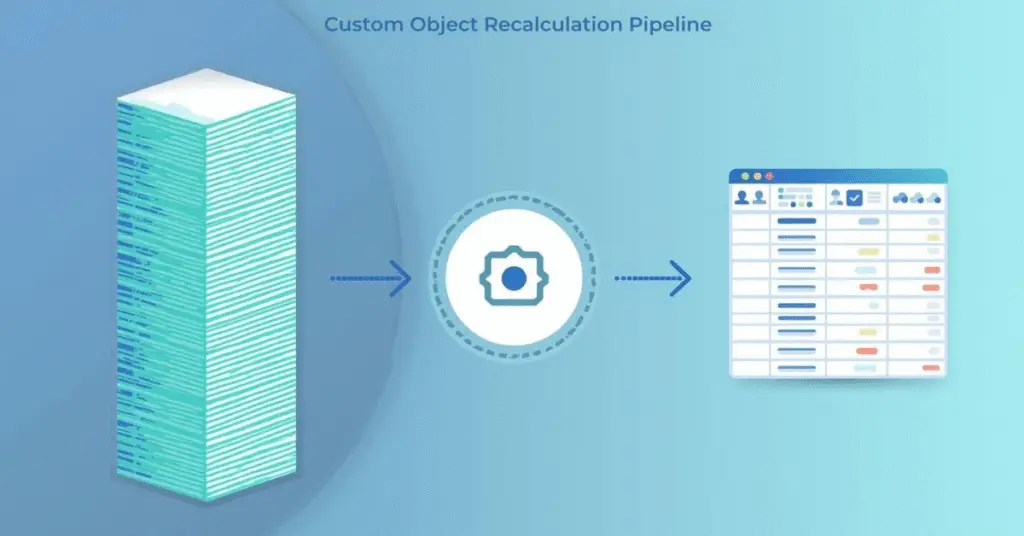
Advanced manipulation is best supported by combining Program Canvas automation with REST API powered logic. Program Canvas manages routing, identifies new activity, and triggers specific processes. The Eloqua REST API updates record in batches, performs calculations, and supports deeper transformations that Program Canvas cannot execute alone.

Oracle Eloqua custom objects, Eloqua custom objects best practices, Eloqua custom objects data manipulation, Eloqua data management, Eloqua Program Canvas automation, Eloqua data architecture, Eloqua REST API updates, Eloqua CO transformation, Eloqua marketing automation workflows, Custom object governance in Eloqua, Cleaning Eloqua CO data,

In practice, Program Canvas identifies new rows in a custom object, checks relevant conditions, and routes them into the appropriate Eloqua marketing automation workflows. The API then performs tasks such as multirow comparisons, recalculations, synchronized updates, or large-scale cleanup. This approach divides responsibilities clearly. Program Canvas handles orchestration, while the API performs heavy lifting.

Some teams opt to utilize cloud apps to streamline these operations. Cloud apps can streamline conditional logic, validate incoming data, or automate structured updates. They eliminate the burden of manual scripting and make processes easier to maintain. This combination of tools creates a reliable environment where Oracle Eloqua custom objects remain accurate even as campaigns evolve.

What Are the Best Practices for Building a Scalable Custom Object Architecture?

A scalable custom object architecture ensures long-term performance, predictable automation, and consistent data quality. The first best practice is to define a clear purpose for each custom object. When multiple unrelated concepts are stored in the same table, workflows become harder to maintain. A single-purpose structure minimizes complexity.

Naming conventions strengthen readability and simplify troubleshooting. When multiple system owners work in Eloqua, clear naming makes relationships obvious and reduces onboarding time for new team members. Link fields should be validated regularly. Without a reliable link between a custom object and its contact or account, programs cannot function correctly.

Oracle Eloqua custom objects, Eloqua custom objects best practices, Eloqua custom objects data manipulation, Eloqua data management, Eloqua Program Canvas automation, Eloqua data architecture, Eloqua REST API updates, Eloqua CO transformation, Eloqua marketing automation workflows, Custom object governance in Eloqua, Cleaning Eloqua CO data,

Performance must also be considered. Large updates should be executed through Eloqua REST API updates and broken into batches to avoid failures. Regular cleanup prevents bloated datasets that slow performance. Teams should avoid creating unnecessary objects and instead align new data with the existing architecture. Each object added introduces new relationships, and without a plan, the environment becomes difficult to manage.

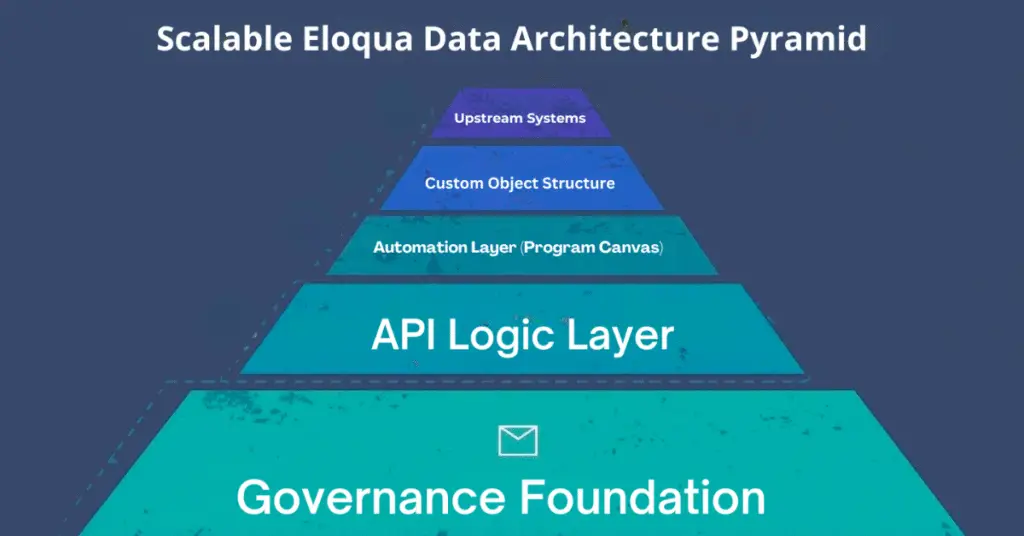
Finally, teams should define which tasks belong to Program Canvas automation, which belong to API based transformation, and which belong to upstream systems. This separation creates cleaner workflows and a more predictable Eloqua data architecture overall.

Conclusion

Advanced data management using Oracle Eloqua custom objects helps marketing teams build stronger, more reliable customer experiences. As organizations scale, better structure, cleaner automation patterns, and consistent transformation practices become essential. When data stays accurate and workflows remain stable, campaigns perform more effectively and personalization becomes easier. If your team wants to strengthen its custom object architecture, improve transformation processes, or build more scalable workflows, 4Thought Marketing can help you create a structure that remains strong as your programs grow.

Frequently Asked Questions (FAQs)

1. What are the common limitations of custom objects?
Native features cannot perform multirow calculations or deep conditional logic without using the REST API or cloud apps.
2. Can custom objects be updated automatically?
Yes. Program Canvas automation and the REST API can work together to trigger updates and transformation workflows.
3. How do custom objects link to contacts?
They use a link field that stores the contact’s unique identifier, which must remain accurate for segmentation and automation.
4. Are there limits to how many records can be updated at once?
Yes. Bulk updates require batching through the REST API to ensure stable performance.
5. When should a custom object be used instead of a contact field?
When one contact requires multiple related records, or when data needs to be tracked historically.
6. What types of tasks require advanced manipulation?
Calculations, synchronization tasks, cleanup activities, and multi-row comparisons typically require API support or cloud applications.

eloqua design editor, Eloqua email templates, responsive email builder, email marketing automation, email personalization, dynamic content blocks, email template management, Eloqua email best practices,
Quick Overview
  • Eloqua Design Editor simplifies email creation without coding skills
  • Drag and drop components accelerate marketing automation workflows
  • Built in responsiveness ensures consistent display across all devices
  • Template management maintains brand standards and supports personalization
  • Seamless campaign integration enables efficient email best practices execution

Creating professional email campaigns has long been a balancing act between design quality and production speed. Marketing teams face tight deadlines, demanding audiences, and the technical complexity of building emails that render correctly across a wide range of email clients and devices. The Eloqua Design Editor addresses these challenges by combining visual simplicity with the robust capabilities that marketing operations professionals need to execute sophisticated campaigns. Whether you’re an Eloqua administrator managing multiple team members or an email marketer building your first campaign, understanding how to leverage this responsive email builder will transform your workflow and improve your results.

What Is Eloqua Design Editor and Why Does It Matter?

The Eloqua Design Editor is Oracle’s modern visual email builder designed specifically for marketing automation workflows. Unlike its predecessor, the Classic Editor, which required extensive HTML knowledge, this tool provides an intuitive drag-and-drop interface that allows you to build, preview, and refine emails in real-time.

For marketing operations professionals, this means faster production cycles without sacrificing quality. Email marketers without coding backgrounds can create professional campaigns independently, while developers appreciate the accelerated workflow. The Eloqua design editor ensures brand consistency through reusable Eloqua email templates, providing the flexibility needed for email personalization at scale. When your team needs to launch campaigns quickly while maintaining high standards, the Eloqua Design Editor becomes an essential component of your email marketing automation strategy.

How Do You Access and Navigate the Eloqua Design Editor Interface?

Accessing the Eloqua Design Editor starts by navigating to Assets, then Emails, and clicking Create Email. Select the Design Editor option rather than the Classic HTML editor. Ensure your user permissions allow email creation within your Eloqua instance.

The interface divides into three intuitive sections. The left panel houses all building blocks, including structure elements like sections and columns, plus content components such as text blocks, images, and buttons. Your center canvas serves as the visual workspace where emails take shape. The right properties panel displays configuration options for whatever element you’ve selected. This layout minimizes clicks and keeps essential tools within reach, allowing you to focus on creating engaging content rather than hunting for features.

What Core Features Make Eloqua Design Editor Essential for Email Teams?

The Eloqua Design Editor provides several capabilities that distinguish it from traditional email builders.

Modular Building Blocks: Structure elements establish your email layout through sections, columns, and spacers. Content elements include text blocks, images, buttons, dividers, social media icons, and HTML blocks for custom code. This modular approach ensures consistency across campaigns while significantly reducing production time. Simply drag components onto your canvas and configure them through the properties panel.

Automatic Responsive Design: Every email built in the Eloqua Design Editor renders correctly across desktop, tablet, and mobile devices without additional coding. Preview your design across device types instantly, and the editor handles technical responsive design requirements automatically. This built-in responsiveness ensures your audience receives optimized experiences regardless of how they access their email.

Advanced Personalization Capabilities: Leverage dynamic content blocks to deliver targeted messages based on audience segments. Insert merge fields to personalize subject lines, greetings, and body content. Set conditional visibility rules that display specific content only to relevant recipients. This email personalization capability allows you to create one email that serves multiple audience segments effectively.

Template Management System: Create reusable Eloqua email templates organized in folders accessible to your entire team. Understanding the distinction between templates and email instances proves crucial—changes to templates affect all future uses, while editing an instance only modifies that specific email. This system maintains brand consistency while allowing flexibility for individual campaigns.

How Do You Build Your First Email Step by Step?

Start by configuring your email name, subject line, sender information, and preview text. These foundational elements impact deliverability and open rates, so invest time in optimization.

Build your structure using section blocks to establish header, body, and footer areas. Add columns within sections to control content layout. This structural foundation ensures your email maintains its intended appearance across email clients.

Populate sections with content components—text for your message, images for visual interest, buttons for clear calls-to-action. Use the properties panel to style each element, maintaining consistency with your brand guidelines through standardized colors, fonts, and spacing.

Preview your email across device views, checking how content stacks on mobile and ensuring buttons remain easily tappable. Send test emails to various email clients, particularly Outlook, to identify rendering issues before launch. This testing phase prevents embarrassing mistakes and ensures professional delivery.

What Advanced Strategies Improve Email Performance?

Optimizing for Outlook requires special attention, as Microsoft’s email client handles HTML differently than others. The Eloqua Design Editor helps, but be aware of common issues like background image rendering problems and spacing inconsistencies. Test emails in Outlook-specific preview modes early in your design process. Consider using VML code for critical design elements, compress images before uploading, and stick to web-safe fonts to minimize rendering problems.

Maintain an optimization checklist that includes keeping email width at 600 pixels for optimal display, compressing all images to reduce load times, including alt text for accessibility compliance, optimizing preheader text to complement subject lines, and approaching every design with a mobile-first mindset.

Establish organization-specific Eloqua email templates with standardized color palettes and typography. Document your email template management processes and create approval workflows to ensure every team member produces on-brand emails. This infrastructure investment pays dividends through improved efficiency and stronger brand recognition across all communications.

How Do You Troubleshoot Common Design Editor Challenges?

Rendering problems often surface when testing across multiple email clients. Address these early by testing frequently during the design process rather than waiting until your email is complete. When dynamic content blocks don’t display correctly, verify merge field syntax matches your data source exactly and confirm that your segmentation logic works as intended.

Mobile issues typically involve column stacking behavior or button sizes that don’t accommodate touch targets. Switch to mobile view regularly during design and test buttons to ensure they’re large enough for thumbs rather than mouse pointers.

Template confusion arises from misunderstanding how template changes propagate. Remember that modifying a template affects all future emails created from that template, but existing emails remain unchanged. If you need to update past campaigns, you must edit each email instance individually. Understanding this distinction prevents unintended changes and helps you plan template updates strategically.

How Does Eloqua Design Editor Integrate with Your Campaign Workflows?

eloqua design editor, Eloqua email templates, responsive email builder, email marketing automation, email personalization, dynamic content blocks, email template management, Eloqua email best practices,

Emails created in the Eloqua Design Editor integrate seamlessly with Eloqua’s campaign canvas. Add completed emails to campaign workflows by dragging them into the appropriate campaign step. Configure sending parameters, including audience segments, send times, and follow-up actions based on recipient behavior.

The editor’s native integration with lead scoring means you can trigger score changes based on email engagement. Segmentation capabilities allow you to target specific audiences within broader contact lists. Track performance through Eloqua’s analytics dashboard, monitoring open rates, click-through rates, conversion metrics, and engagement patterns. Use these insights to refine your email marketing automation strategy continuously, testing subject lines, content variations, and send times to optimize results over time.

Conclusion

The Eloqua Design Editor represents a significant evolution in how marketing teams create email campaigns, making professional email production accessible while providing the sophistication that experienced practitioners demand. Mastering this responsive email builder requires practice, but the investment delivers faster production cycles, stronger brand consistency, and measurably better campaign performance.

At 4Thought Marketing, we’ve seen how teams that commit to learning these tools transform their email marketing automation capabilities and achieve significantly better engagement metrics. The time you invest in building expertise with Eloqua email best practices will compound across every campaign you launch, creating efficiency gains that free your team to focus on strategy and creativity rather than technical execution.

Frequently Asked Questions (FAQs)

What’s the difference between Eloqua Design Editor and Classic Editor?
Design Editor provides a visual drag-and-drop interface that doesn’t require HTML coding, while Classic Editor requires direct HTML manipulation. Eloqua Design Editor automatically handles responsive design.
Can I use custom HTML code in Design Editor?
Yes, Eloqua Design Editor includes HTML content blocks where you can insert custom code. However, avoid using elements like script tags, I-frames, and forms, as these may cause rendering or deliverability issues.
How do I ensure my emails display correctly in Outlook?
Test your emails in Outlook preview modes regularly during design. Use VML code for critical design elements, compress images, stick to web-safe fonts, and avoid complex background images. External rendering tools such as Email on Acid or Litmus can also be used.
Can I convert existing Classic Editor emails to Eloqua Design Editor format?
No, you cannot directly convert Classic Editor emails to Eloqua Design Editor. You’ll need to rebuild emails using Design Editor’s components and templates, though you can copy content.
What happens when I edit a template versus an email instance?
Changes to templates affect all future emails created from that template. Editing an email instance only modifies that specific email, leaving the original template and other instances unchanged.
Does Eloqua Design Editor support A/B testing for email campaigns?
Yes, you can create multiple email versions in Eloqua Design Editor and use Eloqua’s campaign canvas to configure A/B testing parameters, including subject lines, content variations, and send times.

shared email addresses
Key Takeaways
  • Shared email addresses create unique challenges for Eloqua marketers
  • Custom Objects enable many-to-one relationships for multiple contacts
  • Preference management prevents one user from unsubscribing everyone
  • Lead tracking should focus on individuals, not shared addresses
  • Personalization requires moving Custom Object data to contact records

Managing shared email addresses presents a unique challenge for marketing teams using Oracle Eloqua. Multiple family members often use a single email for household registrations, or businesses rely on addresses like [email protected] to centralize communications. While this approach simplifies inbox management for your contacts, it creates complications for marketers who depend on one-to-one email relationships.

Eloqua’s out-of-the-box functionality doesn’t support multiple contacts sharing the same email address. Each contact record is identified by a unique email, creating a fundamental mismatch between how people use email and how Eloqua stores data. When families share an address or businesses use generic inboxes, you lose the ability to track individual engagement, personalize messaging, or respect individual preferences.

Thus, smart marketers leverage Custom Objects and strategic workarounds to accommodate these shared email arrangements. With the right configuration, you can maintain personalized communication, track individual engagement, and respect user preferences—even when multiple people share a single inbox. This guide walks you through proven solutions for managing shared email addresses in Eloqua without sacrificing personalization or compliance.

Eloqua Custom Objects for Shared Email Addresses

Luckily, the solution is simple. Custom Objects (CO) dramatically expand Eloqua’s capabilities for data storage and usage. To use Custom Objects for multiple users sharing an email address, simply create a CO for each user and input the same email address. Eloqua will now have a many-to-one relationship for each person associated with the email address. 4Thought Marketing’s Many-to-One Cloud App is designed to work in tandem with these Custom Objects to construct and send customized emails. Each user will receive an email tailored personally to them on their shared email address.

Solving Potential Problems with Shared Email Addresses

Shared email addresses make things slightly more complicated for marketers. Even with Custom Objects and cloud apps set up perfectly, certain functions or customer behaviors can cause problems. Let’s look at a few common issues you may face and how to handle them.

Unsubscribing or Opting Out

Here’s the situation: you’ve been sending emails to a single address shared by three people—Jack, Jill, and Jane—for a while now. Jack gets tired of seeing your emails and unsubscribes. Now all three users are unsubscribed, even if Jill and Jane are still interested. You’ve lost two potential customers. How can you get around this?

The best way to do this is to use Preference Management. Allow each user connected to an email address to choose which emails they want to receive and which they don’t. In this case, that means that Jack can choose to significantly limit the emails tailored to him, while Jill and Jane can still get the messages they want. This allows Jack to manage his preferences without costing you two additional customers.

Complicated Lead Tracking

Continuing the example of Jack, Jill, and Jane, let’s look at lead tracking. Imagine that Jill expresses interest in a product one of your emails to her advertised. Jill is now a lead. But since Jane hasn’t expressed this interest, and Jack has opted out of most of your messages, only one user on their shared email address is considered a lead.

There is no one-size-fits-all solution for this. In this particular case, it’s best to track Jill the individual as a lead, rather than by treating the email address and everyone else on it as a lead. This lets you focus on nurturing a customer without marketing aggressively to users who haven’t asked for it.

Segmentation & Email Personalization

Personalizing emails that go to a shared address can be confusing. But fortunately, Eloqua can handle it. To use data from Custom Objects to personalize these types of emails, you should:

  • Identify which contacts meet your campaign segmentation criteria
  • Find the Custom Object with the data you need
  • Move the data from the Custom Object to the Contact

You can also use the Many-to-One Email Cloud App to streamline the process.

Email Marketing Like a Pro

Shared email addresses may seem complicated at first, but with the right tools, your marketing team can handle them easily. And we’re always ready to help. With several successful Many-to-One integrations under our belt, we can get your marketing team back on track in no time. Get in touch with us today to learn more or schedule your own integration.

Frequently Asked Questions (FAQs)

Can Eloqua support multiple contacts with shared email addresses?
Not with default functionality. Eloqua requires unique email addresses for each contact, but Custom Objects can create many-to-one relationships to accommodate shared email addresses effectively.
What happens when one person unsubscribes from shared email addresses?
Without proper configuration, everyone using shared email addresses gets unsubscribed. Preference management allows each individual to control their own email preferences independently.
How do I track leads when contacts use shared email addresses?
Track individuals as leads rather than treating shared email addresses as a single lead. This allows you to nurture interested contacts without over-marketing to others on the same address.
What are the biggest challenges with shared email addresses in Eloqua?
The main challenges include managing individual unsubscribes, tracking separate leads, and personalizing content when multiple contacts use shared email addresses for household or business communications.
How can I personalize emails sent to shared email addresses?
Use Custom Objects to store individual data for each person using shared email addresses, then move that data to contact records during campaign execution for seamless personalization.
Do shared email addresses affect email deliverability in Eloqua?
Shared email addresses don’t inherently impact deliverability. However, improper handling of unsubscribes or over-emailing to shared email addresses can trigger spam complaints that harm your sender reputation.

B2B customer onboarding campaigns, B2B onboarding process, customer onboarding strategy, B2B client onboarding steps, effective onboarding emails for B2B clients, personalized onboarding campaigns, customer retention through onboarding
Key Takeaways
  • Set measurable goals and shared expectations.
  • Tailor onboarding to client workflows and stack.
  • Assign owners and clear escalation paths.
  • Simplify secure access with privacy built in.
  • Track milestones and feedback; iterate quickly.

B2B customer onboarding campaigns define how quickly new clients reach value and feel confident with your product and team. The ideal state is a guided, low-friction path—clear roles, secure access, role-based enablement, and early proof of value. Many organizations still encounter scattered ownership, sluggish provisioning, and privacy obligations that complicate first steps, stretching time-to-value and risking churn.

A structured onboarding playbook aligns stakeholders, sequences integrations, and embeds privacy-by-design workflows so accounts activate quickly, adopt core features, and see measurable outcomes from day one.

How do you build loyalty through an effective onboarding campaign?

B2B customer onboarding campaigns create the foundation for engagement and growth. Clients stay loyal when they receive clear information, responsive support, and practical guidance from day one. A strong customer onboarding strategy reduces confusion, accelerates activation, and sets expectations for renewal and expansion across the account.

High-quality execution delivers business outcomes by:

  • Reducing confusion or delays for client teams
  • Preventing early frustrations or miscommunications
  • Increasing the likelihood of renewal and upsell

B2B onboarding influences customer retention, satisfaction, and overall account growth. When, the B2B onboarding process is sequenced and transparent, teams achieve faster product adoption and smoother collaboration.

Setting Clear Goals and Expectations

Every successful program starts with measurable goals and a documented plan. Agree on rapid platform activation, full-service adoption, or early milestone achievement—and record how success will be validated. This up-front clarity builds trust, prevents scope creep, and keeps the B2B onboarding process aligned to outcomes rather than activities.

How to build a customized onboarding process?

Effective B2B customer onboarding campaigns adapt to each client’s context. Begin with discovery: values, stakeholders, and priority use cases. Translate that learning into B2B client onboarding steps that reflect communication norms, data needs, and the client’s tech stack. Adjust timelines for integrations, migrations, and required approvals so momentum is maintained without risk.

Key Steps to Customizing Onboarding

  • Engage stakeholders early to validate priorities and expectations.
  • Map preferred communication style, meeting cadence, and documentation needs.
  • Audit technical requirements and tailor training to the client’s stack.
  • Create process flows aligned to industry standards, compliance obligations, and team structures.
  • Sequence B2B client onboarding steps by dependency and risk.

What are the key components of an effective onboarding campaign?

A cohesive customer onboarding strategy aligns communication, training, and documentation to create clarity and momentum. Communication plans define how, when, and by whom updates go out. Milestone checklists keep tasks on track. Accessible quick-start guides and FAQ libraries remove barriers to adoption.

  • Structured training accelerates user confidence and competence.
  • Clear reporting and follow-up protocols sustain engagement.
  • Comprehensive contact lists provide immediate support options.
  • Automated onboarding sequences deliver timely nudges and surveys at scale.
  • Effective onboarding emails for B2B clients reinforce next steps and surface help resources.

Who should you assign roles and provide points of contact?

Role clarity minimizes delays and rework. Publish owners for project management, support, privacy, and technical guidance, with an escalation path and response expectations. This structure ensures personalized onboarding campaigns can route requests quickly and maintain consistent progress across workstreams.

Why should you simplify access to systems and services?

Clients expect a smooth, secure first login. Provide a single welcome message or portal that aggregates credentials, onboarding materials, and first-use instructions. Use SSO and role-based access to minimize friction. Automated onboarding sequences can remind inactive users, schedule enablement, and collect feedback to keep momentum high.

How do you ensure data security and privacy compliance?

Data security and privacy must be embedded from day one. Share how information is stored, accessed, and protected, aligned to regulations like GDPR and CCPA. Offer role-based access, audit trails, and training for safe data handling. A well-designed customer onboarding strategy builds confidence while supporting customer retention through onboarding by establishing trust early.

How to measure success and gather feedback?

After access is live, shift to continuous improvement. Track time to first login, usage depth, support interactions, and satisfaction. Compare results to goals and refine enablement. Surveys and interviews capture qualitative insight; product analytics reveal friction points. Use these inputs to iterate the B2B customer onboarding campaigns so each cohort activates faster and adopts core features more deeply.

Conclusion – Driving Long-Term Value with Great Onboarding

Effective onboarding turns intent into value, setting trust and measurable outcomes from day one. Many teams still juggle scattered ownership, complex stacks, and tightening privacy expectations that slow activation. Move forward with a tailored, outcome-led playbook—clear roles, secure access, role-based enablement, and feedback-driven iteration—tracked by time-to-first-value and adoption depth.

4Thought Marketing partners with your team to architect the journey and operationalize privacy with 4Comply so momentum never stalls. Ready to shorten ramp time and lift renewals? Book a 30-minute working session with 4Thought Marketing or request a demo to design an onboarding plan that fits your stack, your stakeholders, and your goals.

Frequently Asked Questions (FAQs)

What is the goal of B2B onboarding?
A strong customer onboarding strategy drives time-to-value, clear ownership, and early adoption, laying the groundwork for retention and expansion. Align metrics to adoption and satisfaction signals.
How do I structure the process?
Use a phased B2B onboarding process—kickoff, access, enablement, value milestones—with documented roles, timelines, risk logs, and feedback loops. Sequence integrations by dependency and risk.
Who should own each task?
Assign a project lead, technical owner, and escalation path; publish response expectations so stakeholders know whom to contact and how decisions are made. Publish an org map for quick routing.
What communications are essential?
Short welcome messages, role-based guides, and outcome-driven updates keep clients on track; celebrate early wins and surface next-best actions. Use one primary CTA and clear next steps.
Where does automation help?
Automation triggers welcome emails, reminders, and surveys from product events, scaling predictable work while reserving experts for high-value conversations.

ABM tech, account-based marketing, marketing automation platform (MAP), B2B marketing, data unification, Eloqua ABM, unified customer journey, revenue orchestration, enterprise marketing operations, personalization at scale,
Key Takeaways
  • ABM tech should integrate with MAPs, not compete.
  • Data unification matters more than vendor categories.
  • Eloqua enables seamless multi-channel B2B engagement.
  • Unified teams drive revenue through orchestration.
  • Account-level attribution ensures smarter decisions.

Enterprise B2B marketing often struggles with fragmented stacks and duplicated effort. By aligning account-based marketing, ABM tech with marketing automation platforms like Eloqua, organizations can unify data, simplify orchestration, and drive connected strategies that accelerate sales and marketing.

What Is ABM and How Does It Impact B2B Enterprises with Eloqua?

Account-based marketing (ABM) is a strategy focused on targeting high-value accounts with personalized engagement rather than broad, one-to-many campaigns. In complex B2B environments, this approach aligns marketing and sales around shared revenue goals and ensures that every interaction contributes to a unified customer journey.

ABM’s impact lies in its ability to deepen relationships with buying groups, increase deal velocity, and improve ROI by concentrating resources where they matter most. Eloqua enhances this impact by serving as the operational backbone: integrating data, automating engagement, and enabling account-level personalization. Instead of treating ABM as a separate toolset, Eloqua empowers organizations to embed ABM principles directly within their marketing automation workflows, creating seamless and scalable strategies.

Why Is ABM Still Treated as a Separate Platform?

Traditional ABM solutions are positioned as add-ons to marketing automation platforms, often framed as specialized tools needed for account-focused strategies. Vendors reinforce this separation, but in practice the overlap is significant. The problem is less about missing features and more about structural boundaries that force teams to manage redundant systems. When organizations build around vendor categories instead of customer journeys, they increase complexity rather than solving it.

What Is the Real Challenge: Data Unification or Vendor Limits?

B2B buyers engage across multiple channels, expecting one consistent experience. Fragmented technology makes it difficult to deliver that experience, producing silos in data, analytics, and attribution. These silos drive operational overhead that can outweigh any perceived benefit of “best-of-breed” tools. Eloqua’s strength lies in its ability to unify data flows and simplify orchestration, reducing dependency on vendor silos. Prioritizing unified customer journeys over vendor-driven boundaries is what truly enables personalization at scale.

What’s the Balanced View between ABM Platforms & Eloqua?

A common narrative says a separate ABM platform is mandatory once programs mature. In reality, the decision hinges on goals and data unification, not labels. If your team needs predictive analytics and media buying out of the box, an ABM suite can help—but beware of overlapping features and new silos. If your priority is orchestration and personalization at scale across known accounts, Eloqua can act as the operational backbone while integrating best-in-class intent, enrichment, and analytics partners. This approach lets you extend ABM tech without multiplying platforms, keeping journeys unified and measurement consistent.

How Can Teams Become Truly Unified and Data-Driven?

Unifying technology also reshapes how teams work, but true transformation requires more than tools. It demands cross-functional collaboration, shared metrics, and data-first thinking that extends beyond marketing into sales, service, and operations. When data silos dissolve, every function contributes to a single, consistent view of the customer.

Modern enterprise organizations that embrace this shift often adopt new roles and practices:

  • Account Growth Managers focus on lifecycle engagement across marketing and sales, ensuring continuity throughout the buying journey.
  • Revenue Orchestration Specialists design seamless, multi-channel journeys that span all touchpoints, balancing personalization with scale.
  • Unified Attribution Analysts align metrics across systems to provide clear, account-level revenue insights that both sales and marketing can trust.
  • Journey Architects connect insights from automation, ABM tech, and analytics to create cohesive customer experiences.

These roles highlight how ABM and MAP convergence is less about software selection and more about organizational design powered by unified data. Teams that embrace this approach become more agile, accountable, and effective at driving revenue together.

How Does Eloqua Help Break Traditional Boundaries?

ABM tech, account-based marketing, marketing automation platform (MAP), B2B marketing, data unification, Eloqua ABM, unified customer journey, revenue orchestration, enterprise marketing operations, personalization at scale,

Eloqua already provides the integration, automation, and scalability needed for enterprise ABM, but its true value lies in enabling marketing teams to collapse the walls between ABM tech and MAPs. Instead of adding more disconnected tools, Eloqua allows organizations to extend their existing infrastructure and create a unified, data-first foundation.

With Eloqua, teams can:

  • Unify data models using connectors, APIs, and integrations with CRMs, analytics platforms, and ABM reporting tools.
  • Build multi-channel experiences that combine campaign automation with account-based personalization across email, web, events, and sales outreach.
  • Track attribution at the account level, giving organizations a clear picture of how entire buying groups engage and where revenue influence occurs.
  • Reduce technical debt by consolidating overlapping capabilities into one system of record for orchestration.
  • Enable personalization at scale, ensuring that customer experiences are consistent, timely, and relevant across every channel.

By treating Eloqua as the operational backbone, organizations can align marketing and sales teams around unified data, simplify technology stacks, and focus resources on customer journey optimization rather than vendor management. This approach positions Eloqua not just as a marketing automation platform, but as the bridge that connects ABM strategy with enterprise-level execution.

Conclusion

Enterprise B2B marketing doesn’t need another layer of disconnected technology—it needs a unified foundation. While ABM platforms often feel like separate categories, the real opportunity lies in leveraging Eloqua’s strengths to bring account-based and automation strategies together. This shift reduces silos, clarifies attribution, and creates experiences that resonate with entire buying groups rather than isolated contacts. For organizations ready to streamline operations and deliver personalization at scale, 4Thought Marketing can help design Eloqua-driven strategies that unify teams, technology, and revenue outcomes.

Frequently Asked Questions (FAQs)

What is ABM tech and why does it matter for B2B marketing?
ABM tech refers to tools and strategies that help marketers personalize engagement at the account level, enabling stronger alignment between sales and marketing.
How does account-based marketing integrate with a marketing automation platform (MAP)?
ABM and MAPs are complementary—ABM provides account focus, while MAPs like Eloqua deliver orchestration. Together, they unify journeys and improve personalization at scale.
What is the real challenge—data unification or vendor limits?
Data unification is the core challenge. Vendor limits often create silos, but the real obstacle is fragmented data across channels that prevents a unified customer journey.
Can Eloqua be used for account-based marketing?
Yes. Eloqua ABM capabilities allow teams to unify data models, orchestrate multi-channel engagement, and measure revenue at the account level without needing a separate ABM platform.
How do unified, data-driven teams improve revenue orchestration?
When teams share unified data, they can coordinate strategies across sales, marketing, and operations. This removes silos and enables account-level attribution that improves decision-making.
What does scaling personalization in B2B marketing look like?
Scaling personalization means using automation and unified profiles to deliver relevant content across email, web, and sales touchpoints—ensuring consistency for entire buying groups.

dirty data zombies

Halloween is coming up soon! As your company adjusts planned promotional campaigns to be seasonally appropriate, you may be overlooking a Halloween disaster waiting to happen. Check your customer contact database. How much of it can politely be called “dirty data”? If too many of your contacts are unusable for one reason or another, you have something of a zombie situation on your hands.

What is Dirty Data?

Simply put, “dirty data” is any marketing data that can’t be used because it’s outdated or incorrect. This is especially problematic in customer contact info, where customers may have input fake information to avoid being contacted. Obviously, these records are dead ends. Common sources of dirty data include:

  • False information: As stated above, some customers deliberately give fake names and contact info to take advantage of an offer without being contacted.
  • Expired data: These customers provided legitimate information, but for whatever reason, the provided data no longer works. Maybe they’ve since abandoned the provided email address or switched phone numbers.
  • Typos: Even a simple typo can result in an unusable entry, or an embarrassing mistake.
  • Duplicate data: This can result in accidentally messaging the same contact multiple times.
  • Data in the wrong fields: A customer who accidentally puts a phone number in the email address field could confuse your email automation system.
  • Format errors: This can be a mistake on the customer’s part, or the result of a computer hiccup as you transfer data. Either way, the data becomes unreadable.

Whatever the cause, these dirty data entries take up space in your records that could be occupied by actual leads.

The Dirty Data Snowball Effect

A few unusable entries may not seem like a big deal. But if left unchecked, dirty data can snowball. For example, consider the example of a misspelled record. Suppose a customer indicated that they’re the vice president of a company. They could have input this info in a variety of ways, including but not limited to:

  • Vice President
  • VP
  • V.P.
  • V. President

To a human, these entries clearly all mean “vice president”. But unfortunately, automated systems aren’t humans. A poorly maintained email automation system will view each of these entries as a completely different title and craft emails accordingly. This affects everything from email personalization to lead generation to confusing marketing reports. What started out as a simple typo snowballed into a significant problem.

dirty data

Is Dirty Data Really That Bad? Yes

Clearly, typos can create dirty data entries that can give your marketing team a lot of grief. But what about fake names or no-longer-usable contact info? Those are mostly harmless, right?

Unfortunately, no. Dirty data touches nearly every step of the marketing process, including:

  • Initial data storage: Many marketing softwares, charge per contact. Useless contacts aren’t just taking up space in your database—they may be quite literally costing you money!
  • Personalized messages: Imagine crafting a perfectly personalized email, only for the wrong person to receive it. Worse, what if the email is personalized to someone who provided an obviously fake name? Your message might open with “Dear Superman”. Customers won’t take these kinds of emails seriously.
  • Data segmentation: Dirty data interferes with your marketing segments, making it harder to target the right audience.
  • Metrics: Incorrect information can result in emails not being delivered, lower clickthrough rates, inaccurate sales numbers, and more.
  • Lead nurturing: Your sales department uses the same data as the marketing department to reach out to potential leads. If both departments are using dirty data, they could be shooting themselves in the foot!

How to Perform a Data Checkup

You can and should regularly inspect your customer database for dirty data. However, the best way to remove dirty data from your system is to prevent it from getting in to begin with. At 4Thought Marketing, we’ve developed a simple process to clean up your data:

  1. Perform a data review: Look over the data you already have and identify any obvious problems.
  2. Remove the bad data: Delete unusable entries and, when possible, correct any that are obviously typos instead of deliberately fake data.
  3. Set up a data filtration system: Inspect data as it enters your system and remove any unusable entries.
  4. Assign a data manager: Have an employee dedicate their time to reviewing data in the system to catch anything the cloud apps missed.

Prevent the Zombie Apocalypse

There may not be a medical cure for dirty data like there (hopefully) is for a zombie outbreak. But there is a solution. A few extra minutes of work and data inspection can save your company a significant amount of time and money later on.

Get in touch with us today to start clearing the zombies out of your database!


eloqua engage
Key Takeaways
  • Strong data foundations determine segmentation accuracy and ROI.
  • Capacity constraints—not tools—often limit marketing operations impact.
  • Prioritize quick wins that reduce friction across handoffs and systems.
  • Embed governance and measurement to scale repeatable, reliable execution.
  • Use AI selectively to speed analysis and workflows, not add noise.

Eloqua Engage is reshaping how modern marketing teams connect with prospects and customers by simplifying personalization and streamlining campaign execution. Many organizations recognize the need for efficient engagement, but they often struggle with fragmented tools, limited resources, and inconsistent messaging. By leveraging Eloqua Engage as a unified platform, marketers can overcome these hurdles, drive more relevant interactions, and accelerate business outcomes without sacrificing compliance or scalability.

What Does Eloqua Engage Offer?

Eloqua Engage is a sales tool that makes it easy for B2B sales teams to send personalized emails to prospects and customers using templates created by their marketing team. Sales managers can leverage reporting capabilities to see how their reps are using the tool and what results they are getting. The marketing team can also use reporting to make improvements to increase conversions.

The benefits of utilizing Eloqua Engage include:

  • Increased sales productivity: Engage helps sales reps save time by providing a library of pre-built email templates that they can customize to fit their needs. This eliminates the need to start from scratch with every email.
  • Improved email personalization: Engage allows sales reps to effortlessly personalize their emails with dynamic content, such as the recipient’s name, company, and job title. This can help to improve the open and click-through rates of emails.
  • Better brand consistency: Engage templates ensure that emails sent by sales reps are consistent with the company’s brand and marketing messaging without burdening sales with creating or managing templates.
  • Enhanced tracking and reporting: Engage provides detailed monitoring and reporting capabilities for both sales and marketing. Sales managers can see how their reps use the tool and what results they are getting. Marketing can view clicks, run tests, and make improvements to improve the sales process and increase sales performance.

Using Eloqua Engage Effectively

To get the most out of Eloqua Engage, your team should consider the following:

  • Build a library of email templates: During campaign planning, your sales and marketing teams should discuss messaging that will support campaigns, then build email templates to streamline the processing for sales to send follow-up emails.
  • Provide sales with Engage training: As part of the campaign launch, provide training to sales on how to use the tool, how it can save them time, and how it provides key metrics to sales leadership about their usage and results.
  • Leverage reporting for continuous improvement: Oracle Eloqua offers detailed tracking and reporting capabilities for Engage activities and peformance. Review metrics with underperforming sales team members on how to use Engage more effectively. In addition, highlight positive results and ask high-performing reps to share their best practices.

Eloqua Engage: An Essential Tool for Eloqua Users

To summarize, Eloqua Engage is a powerful sales tool that can help B2B sales teams increase productivity, improve email personalization, and achieve better results. Marketing can support sales efforts by making it easier for sales to send brand-consistent emails quickly, and sales leadership can review usage and performance metrics to drive higher results. If your team relies on Eloqua to create and run marketing campaigns, Eloqua Engage is a must-have.

Ready to get the most out of your Eloqua instance? Contact our team today for expert Eloqua help.

Frequently Asked Questions (FAQs)

What is Eloqua Engage used for?
Eloqua Engage helps marketing and sales teams create, personalize, and send approved emails that align with brand standards, making customer communication faster and more consistent.
How does Eloqua Engage improve personalization?
It provides pre-approved templates and dynamic content tools, enabling users to tailor messages to different audiences while maintaining compliance and avoiding errors.
Can Eloqua Engage integrate with CRM systems?
Yes, Eloqua Engage integrates seamlessly with CRMs like Salesforce and Microsoft Dynamics, ensuring that sales reps can send targeted emails directly from their CRM environment.
What are the benefits of using Eloqua Engage for sales teams?
Sales teams gain access to marketing-approved emails, reducing the time spent writing from scratch while ensuring consistency, compliance, and better engagement with prospects.
Is Eloqua Engage suitable for global campaigns?
Absolutely. Eloqua Engage supports multi-language templates and global compliance requirements, making it ideal for organizations running campaigns across multiple regions.
How does Eloqua Engage support compliance?
It enforces the use of approved templates, tracks usage, and ensures that all emails adhere to brand, legal, and privacy standards, reducing regulatory risks.

4Thought Marketing Logo   February 6, 2026 | Page 1 of 1 | https://4thoughtmarketing.com/articles/tag/oracle-eloqua/