There are situations where you need to update contact fields with either custom information, date stamps or append a value to certain fields. This is a simple step to do, but not when you have tens or hundreds of records to update. This is where this cloud action comes into play. With Enhanced Update Rules you can update contacts using custom data and static values.
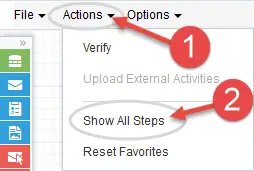
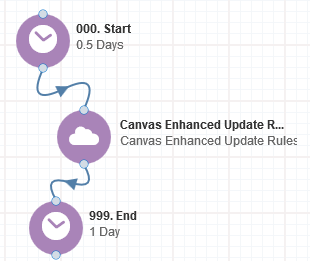
This document will show how this Cloud Action can be used inside Campaign Canvas.
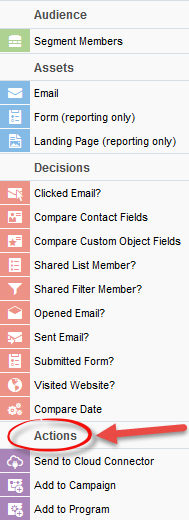
b) Click the pencil icon to open the settings for this step.
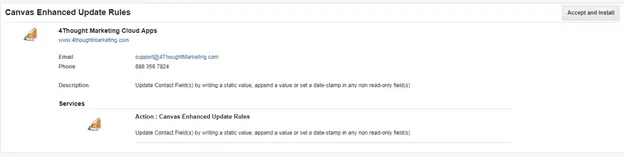
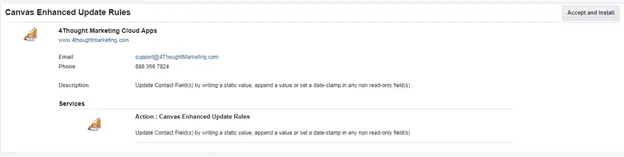
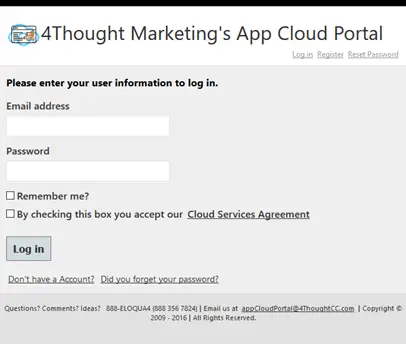
You will need a user to log in and configure this Cloud Action. If you don’t have one, you can create one. If you do, use your user to login in the page shown in the following screenshot:
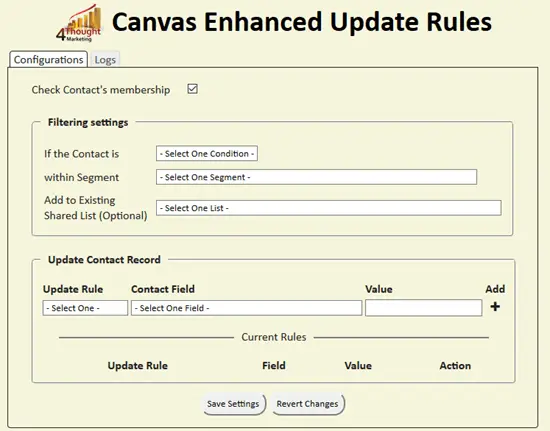
- For this cloud action, you need to indicate if the contacts you want to update should be part or excluded from a Segment. Optionally you can add the contacts to a Shared list.
2. Afterwards you need to specify the update rules you’re going to use. There are 3 types:
- Append static value: for this rule, you need to select the field you want to update and a value to append to the value set in that field. Optionally you can use a delimiter to separate the appended part from the original.
- Apply date stamp: This update rule is used to set a date stamp to a date field. You only need to select the field you want to update and the Cloud Action will use the appropriate format for it. Take into consideration that only when sending an email or sending information to the CRM System you will see the formatted value. In all other cases, the value of the field will use the normal format of MM/DD/YY HH:mm:fff.
- Set static value: this update rule will overwrite the value of the field with the custom text you set.
After adding the required rules you need to save. Otherwise, the rules won’t be applied.
Also, you can use the trash button to remove a rule from the mapping area.
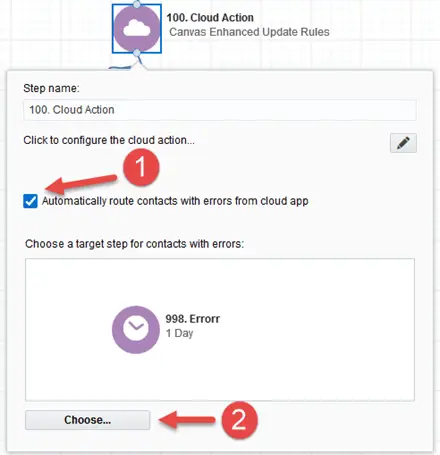
3.Recommended: Create an element in the campaign in case an error happens, in this example it’s a Wait Step. Check the box to “Automatically route contacts with errors from cloud app”, select the step where you want the contacts to be routed.
You need a license to configure and execute this Cloud App. If you don’t have a license, an error message will appear on the configuration page.
If you don’t see CO Records being processed by the app, it may be because your license is missing or expired. To obtain a license, contact your account manager or contact us.
- Each Eloqua instance requires a separate cloud app license.
- Each cloud app license includes a reasonable usage limitation of 250k records processed daily and up to 5 app instantiations per Eloqua instance. Higher usage tiers are available at extra cost.
- For additional license details, please review the Cloud Services User License Agreement.