





Quick Takeaways
- Outlook for Windows renders email with Word’s engine and ignores CSS background images.
- Gradients in email fail completely in every Outlook for Windows version.
- Always set a solid fallback background color behind any background image.
- Use VML in Outlook conditional comments to force backgrounds to render.
- Never place load-bearing text on an image that might not load.
- Test every send across real email clients before pressing send.
Table of Contents
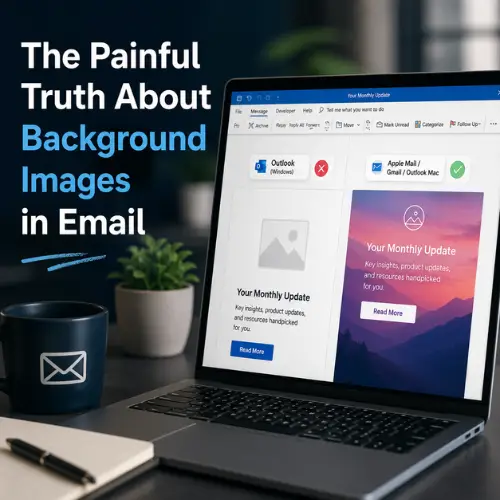
You spend hours perfecting a hero section with a full-bleed gradient and an edge-to-edge brand image. It looks flawless in your design tool. Then you send a test to Outlook 2016, and it arrives as a blank white box with text floating inside. Welcome to email development.
Background images and gradients are among the most visually impactful tools a designer has, and among the least reliable once an email leaves the builder. A background image in email is any image applied behind content rather than placed inline as a standard picture. The problem is that inboxes disagree, loudly, about whether that background should appear at all.
This is the practitioner’s troubleshooting guide for B2B marketing operations teams working in Oracle Eloqua and Adobe Marketo Engage. It covers exactly why gradients and background images in email break, which clients fail, and the fallback patterns that keep your message intact when the design does not survive.
Why Do Gradients and Background Images Break in Email?
They break because email clients do not share a single rendering engine the way web browsers do. A browser uses a modern engine like Blink or WebKit; email clients each use their own pipeline, and some of those pipelines are more than a decade old. That fragmentation is why the same email can render across thirty or more different client and device combinations, and why CSS support in email clients is so uneven.
Outlook on Windows Renders Email with Microsoft Word
The single biggest culprit is Outlook for Windows. Every desktop version from 2007 through 2021 renders HTML email using Microsoft Word’s rendering engine, not a web engine. So when someone asks does Outlook support background images, the honest answer for the Windows desktop app is no: the property is ignored, and the element falls back to whatever solid color you set, or to nothing.
For the wider rendering picture this article sits beneath, see the practitioner’s guide to responsive email design for Eloqua and Marketo, which this deep-dive supports.
Microsoft documents the Word rendering engine and its unsupported CSS, explicitly naming background-image, background-position, and background-repeat as properties it ignores.
Gmail, Yahoo, and Samsung Each Filter CSS Differently
Outlook is the worst offender, but it is not alone. Gmail sandboxes styles and can strip the entire style attribute when it dislikes a value inside it, which is the usual reason for a Gmail background image not showing. Yahoo Mail applies its own CSS filtering, and Samsung Email, despite being Chromium-based, introduces its own quirks around sizing and positioning. Apple Mail, on WebKit, is the reliable exception, rendering backgrounds much like a browser.
Do Gradients in Email Work? The Client Support Split
Gradients in email tell a two-sided story. In modern clients they render beautifully; in Outlook for Windows they do not render at all.
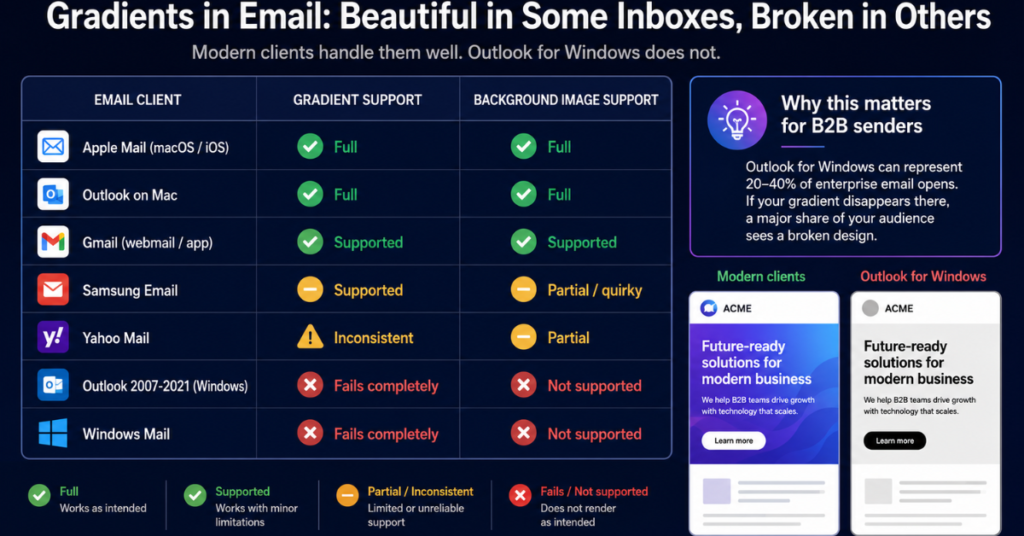
The reason this matters so much for B2B senders is reach. Outlook for Windows can account for an estimated 20 to 40 percent of opens in enterprise audiences, so a gradient in email that simply vanishes there is not cosmetic; it is a large slice of your list seeing a broken design.
Which Email Clients Support Background Images in Email?
Support is better than it is for gradients, but still far from universal. According to the Can I Email support data, the CSS background-image property sits around ninety percent support overall, a number that hides the exact clients that matter most to B2B teams. Apple Mail, Gmail webmail, and iOS Mail handle it well; Outlook for Windows does not support it at all; Yahoo and Samsung are partial and unpredictable, especially around background-size.
For the current client-by-client picture, Can I Email publishes a live CSS background-image support table worth checking before you commit to any background technique.
One practical wrinkle: the HTML background attribute on a table or table cell has broader reach than the CSS property, including in some older Outlook builds. That is why the reliable pattern layers three things together, the HTML background attribute, the inline background-image style, and a solid fallback color, so at least one of them lands in every client.
How Do You Ship Gradients and Background Images Safely?
You cannot force every client to render a background, so aim for graceful degradation: the email must still work without it.
Always Set a Fallback Background Color
Every element with a gradient or background image needs a solid fallback background color, set with the bgcolor attribute or a background-color style. Choose a color pulled from the image so the layout holds together if the image never loads. Watch dark mode here: a white fallback background color behind a dark hero can invert to near-black in Apple Mail or Gmail on Android, making white overlay text disappear, so pick a mid-dark brand color as the fallback instead.
Use the Layered Pattern: HTML Attribute, Inline CSS, and VML for Outlook
When a section genuinely needs the image, use the bulletproof approach. A bulletproof background image is one built to survive even in clients that refuse the CSS. For Outlook specifically, that means a VML background image: Vector Markup Language wrapped in Outlook conditional comments that only Outlook reads, while other clients use the standard CSS.
<!--[if gte mso 9]>
<v:rect xmlns:v="urn:schemas-microsoft-com:vml" fill="true" stroke="false"
        style="width:600px; height:300px;">
  <v:fill type="frame" src="https://yourdomain.com/hero-bg.jpg" color="#1a1a2e" />
  <v:textbox inset="0,0,0,0"><![endif]-->
<td background="https://yourdomain.com/hero-bg.jpg" bgcolor="#1a1a2e"
    style="background-image:url('https://yourdomain.com/hero-bg.jpg');
           background-color:#1a1a2e; background-size:cover; background-position:center;">
  <!-- your content here -->
</td>
<!--[if gte mso 9]></v:textbox></v:rect><![endif]-->
This is the industry-standard pattern for enterprise templates. Its one catch: VML needs fixed dimensions, which makes it awkward in fully fluid layouts, so reserve it for high-value hero sections rather than every block.
When in Doubt, Use a Foreground Image and Never Rely on Load-Bearing Text
If a visual absolutely must appear everywhere, use a foreground img tag instead of a background. Foreground images render consistently across all major clients, image blocking aside. And whichever route you choose, never put legible, load-bearing text directly on a background image: if the image is blocked or stripped, that text goes with it and the message breaks.
Where This Bites in Eloqua and Marketo
Both platforms let you inject custom HTML, so the VML and conditional-comment techniques are fully available whether you build in an Eloqua Campaign or a Marketo Program. The trap is the visual editor itself: some drag-and-drop builders strip or escape HTML comments on save, including the Outlook conditional comments that wrap your VML. Build standard layouts in the Eloqua Design Editor or Marketo’s new Email Designer, but for complex background treatments, work in the raw HTML source and confirm the conditional comments survive the save.
Keep the platform vocabulary straight, too. In Eloqua the effort is a Campaign; in Marketo it is a Program. And the choice between locked versus unlocked Eloqua email templates and Marketo modules decides who can safely edit a background block. If you are standardizing hero sections across many sends, building brand-safe custom email templates is the cleanest way to lock the pattern once and reuse it.
When the build is done, treat email campaign QA testing as the gate and check every major client before you send. The same cross-client testing services 4Thought Marketing uses for this, Litmus and Email on Acid, make those previews fast, but a human still owns the final look.
Conclusion
Gradients and background images in email are not impossible; they demand a different mental model than web design. Assume Outlook for Windows will ignore your CSS, assume Gmail may strip it, and build every background so the email still communicates when the visual never arrives. Set a fallback color, use VML only where it earns its keep, keep load-bearing content out of the image, and let QA be the final gate. Do that, and your emails will look intentional in every inbox that matters.
If you want help building email templates that render cleanly across Eloqua and Marketo, contact us at 4Thought Marketing.
About 4Thought Marketing
We're a B2B marketing automation and AI consultancy with a thing for getting complex tech to actually work. Since 2008, we've helped hundreds of organizations across financial services, technology, manufacturing, and real estate get more from Eloqua, Marketo, and their CRM integrations. We serve our clients across marketing automation strategy, lead lifecycle, AI, compliance, preference management, and more. Explore our services or get in touch.
Frequently Asked Questions
Does Outlook support background images in email?
Not on Windows. Every desktop version of Outlook from 2007 through 2021 uses Microsoft Word’s rendering engine, which does not support the CSS background-image property. The image is ignored and the element falls back to its background color. Outlook on Mac, Outlook.com, and the mobile apps handle background images far better.
Why is my Gmail background image not showing?
Gmail sandboxes email styles and will sometimes remove the entire style attribute when it objects to a value inside it, which takes your background with it. Pair it with a solid fallback color, and test Gmail webmail and the Gmail app separately, since they can differ.
What is a VML background image, and when should I use one?
A VML background image uses Vector Markup Language inside Outlook-only conditional comments to force a background to render in Outlook for Windows, where standard CSS fails. Use it for high-value hero sections where brand presentation matters, and pair it with a CSS background for every other client. It requires fixed dimensions, so it is less suited to fully fluid layouts.
Do gradients in email work across all inboxes?
No. Gradients render well in Apple Mail, Gmail, Outlook on Mac, and Samsung Email, but they fail completely in every Outlook for Windows version, where they fall back to your background color. Because Outlook for Windows can represent a large share of B2B opens, always define a solid fallback background color behind any gradient.
What is the safest way to use a background image in email?
Layer your defenses: set the HTML background attribute, add the inline background-image style, and always include a solid fallback background color. Add VML only when Outlook for Windows must show the image, and never place essential text on the image itself. If a visual must appear everywhere, use a foreground image instead.