Quick Overview
- Eloqua Design Editor simplifies email creation without coding skills
- Drag and drop components accelerate marketing automation workflows
- Built in responsiveness ensures consistent display across all devices
- Template management maintains brand standards and supports personalization
- Seamless campaign integration enables efficient email best practices execution
Creating professional email campaigns has long been a balancing act between design quality and production speed. Marketing teams face tight deadlines, demanding audiences, and the technical complexity of building emails that render correctly across a wide range of email clients and devices. The Eloqua Design Editor addresses these challenges by combining visual simplicity with the robust capabilities that marketing operations professionals need to execute sophisticated campaigns. Whether you’re an Eloqua administrator managing multiple team members or an email marketer building your first campaign, understanding how to leverage this responsive email builder will transform your workflow and improve your results.
What Is Eloqua Design Editor and Why Does It Matter?
The Eloqua Design Editor is Oracle’s modern visual email builder designed specifically for marketing automation workflows. Unlike its predecessor, the Classic Editor, which required extensive HTML knowledge, this tool provides an intuitive drag-and-drop interface that allows you to build, preview, and refine emails in real-time.
For marketing operations professionals, this means faster production cycles without sacrificing quality. Email marketers without coding backgrounds can create professional campaigns independently, while developers appreciate the accelerated workflow. The Eloqua design editor ensures brand consistency through reusable Eloqua email templates, providing the flexibility needed for email personalization at scale. When your team needs to launch campaigns quickly while maintaining high standards, the Eloqua Design Editor becomes an essential component of your email marketing automation strategy.
How Do You Access and Navigate the Eloqua Design Editor Interface?
Accessing the Eloqua Design Editor starts by navigating to Assets, then Emails, and clicking Create Email. Select the Design Editor option rather than the Classic HTML editor. Ensure your user permissions allow email creation within your Eloqua instance.
The interface divides into three intuitive sections. The left panel houses all building blocks, including structure elements like sections and columns, plus content components such as text blocks, images, and buttons. Your center canvas serves as the visual workspace where emails take shape. The right properties panel displays configuration options for whatever element you’ve selected. This layout minimizes clicks and keeps essential tools within reach, allowing you to focus on creating engaging content rather than hunting for features.
What Core Features Make Eloqua Design Editor Essential for Email Teams?
The Eloqua Design Editor provides several capabilities that distinguish it from traditional email builders.
Modular Building Blocks: Structure elements establish your email layout through sections, columns, and spacers. Content elements include text blocks, images, buttons, dividers, social media icons, and HTML blocks for custom code. This modular approach ensures consistency across campaigns while significantly reducing production time. Simply drag components onto your canvas and configure them through the properties panel.
Automatic Responsive Design: Every email built in the Eloqua Design Editor renders correctly across desktop, tablet, and mobile devices without additional coding. Preview your design across device types instantly, and the editor handles technical responsive design requirements automatically. This built-in responsiveness ensures your audience receives optimized experiences regardless of how they access their email.
Advanced Personalization Capabilities: Leverage dynamic content blocks to deliver targeted messages based on audience segments. Insert merge fields to personalize subject lines, greetings, and body content. Set conditional visibility rules that display specific content only to relevant recipients. This email personalization capability allows you to create one email that serves multiple audience segments effectively.
Template Management System: Create reusable Eloqua email templates organized in folders accessible to your entire team. Understanding the distinction between templates and email instances proves crucial—changes to templates affect all future uses, while editing an instance only modifies that specific email. This system maintains brand consistency while allowing flexibility for individual campaigns.
How Do You Build Your First Email Step by Step?
Start by configuring your email name, subject line, sender information, and preview text. These foundational elements impact deliverability and open rates, so invest time in optimization.
Build your structure using section blocks to establish header, body, and footer areas. Add columns within sections to control content layout. This structural foundation ensures your email maintains its intended appearance across email clients.
Populate sections with content components—text for your message, images for visual interest, buttons for clear calls-to-action. Use the properties panel to style each element, maintaining consistency with your brand guidelines through standardized colors, fonts, and spacing.
Preview your email across device views, checking how content stacks on mobile and ensuring buttons remain easily tappable. Send test emails to various email clients, particularly Outlook, to identify rendering issues before launch. This testing phase prevents embarrassing mistakes and ensures professional delivery.
What Advanced Strategies Improve Email Performance?
Optimizing for Outlook requires special attention, as Microsoft’s email client handles HTML differently than others. The Eloqua Design Editor helps, but be aware of common issues like background image rendering problems and spacing inconsistencies. Test emails in Outlook-specific preview modes early in your design process. Consider using VML code for critical design elements, compress images before uploading, and stick to web-safe fonts to minimize rendering problems.
Maintain an optimization checklist that includes keeping email width at 600 pixels for optimal display, compressing all images to reduce load times, including alt text for accessibility compliance, optimizing preheader text to complement subject lines, and approaching every design with a mobile-first mindset.
Establish organization-specific Eloqua email templates with standardized color palettes and typography. Document your email template management processes and create approval workflows to ensure every team member produces on-brand emails. This infrastructure investment pays dividends through improved efficiency and stronger brand recognition across all communications.
How Do You Troubleshoot Common Design Editor Challenges?
Rendering problems often surface when testing across multiple email clients. Address these early by testing frequently during the design process rather than waiting until your email is complete. When dynamic content blocks don’t display correctly, verify merge field syntax matches your data source exactly and confirm that your segmentation logic works as intended.
Mobile issues typically involve column stacking behavior or button sizes that don’t accommodate touch targets. Switch to mobile view regularly during design and test buttons to ensure they’re large enough for thumbs rather than mouse pointers.
Template confusion arises from misunderstanding how template changes propagate. Remember that modifying a template affects all future emails created from that template, but existing emails remain unchanged. If you need to update past campaigns, you must edit each email instance individually. Understanding this distinction prevents unintended changes and helps you plan template updates strategically.
How Does Eloqua Design Editor Integrate with Your Campaign Workflows?
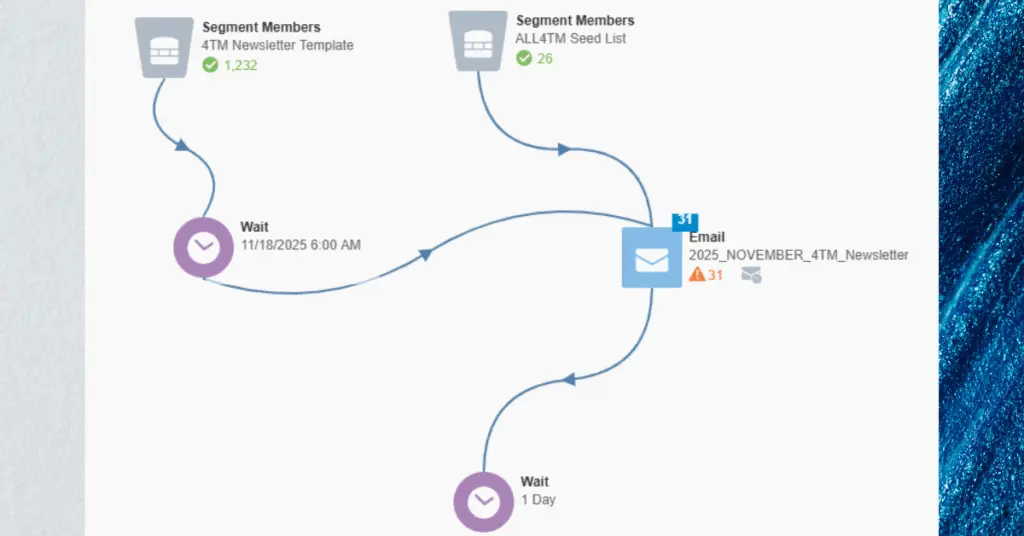
Emails created in the Eloqua Design Editor integrate seamlessly with Eloqua’s campaign canvas. Add completed emails to campaign workflows by dragging them into the appropriate campaign step. Configure sending parameters, including audience segments, send times, and follow-up actions based on recipient behavior.
The editor’s native integration with lead scoring means you can trigger score changes based on email engagement. Segmentation capabilities allow you to target specific audiences within broader contact lists. Track performance through Eloqua’s analytics dashboard, monitoring open rates, click-through rates, conversion metrics, and engagement patterns. Use these insights to refine your email marketing automation strategy continuously, testing subject lines, content variations, and send times to optimize results over time.
Conclusion
The Eloqua Design Editor represents a significant evolution in how marketing teams create email campaigns, making professional email production accessible while providing the sophistication that experienced practitioners demand. Mastering this responsive email builder requires practice, but the investment delivers faster production cycles, stronger brand consistency, and measurably better campaign performance.
At 4Thought Marketing, we’ve seen how teams that commit to learning these tools transform their email marketing automation capabilities and achieve significantly better engagement metrics. The time you invest in building expertise with Eloqua email best practices will compound across every campaign you launch, creating efficiency gains that free your team to focus on strategy and creativity rather than technical execution.
Frequently Asked Questions (FAQs)
u003cstrongu003eWhat’s the difference between Eloqua Design Editor and Classic Editor?u003c/strongu003e
Design Editor provides a visual drag-and-drop interface that doesn’t require HTML coding, while Classic Editor requires direct HTML manipulation. Eloqua Design Editor automatically handles responsive design.
u003cstrongu003eCan I use custom HTML code in Design Editor?u003c/strongu003e
Yes, Eloqua Design Editor includes HTML content blocks where you can insert custom code. However, avoid using elements like script tags, I-frames, and forms, as these may cause rendering or deliverability issues.
u003cstrongu003eHow do I ensure my emails display correctly in Outlook?u003c/strongu003e
Test your emails in Outlook preview modes regularly during design. Use VML code for critical design elements, compress images, stick to web-safe fonts, and avoid complex background images. External rendering tools such as Email on Acid or Litmus can also be used.
u003cstrongu003eCan I convert existing Classic Editor emails to Eloqua Design Editor format?u003c/strongu003e
No, you cannot directly convert Classic Editor emails to Eloqua Design Editor. You’ll need to rebuild emails using Design Editor’s components and templates, though you can copy content.
u003cstrongu003eWhat happens when I edit a template versus an email instance?u003c/strongu003e
Changes to templates affect all future emails created from that template. Editing an email instance only modifies that specific email, leaving the original template and other instances unchanged.
u003cstrongu003eDoes Eloqua Design Editor support A/B testing for email campaigns?u003c/strongu003e
Yes, you can create multiple email versions in Eloqua Design Editor and use Eloqua’s campaign canvas to configure A/B testing parameters, including subject lines, content variations, and send times.