Quick Takeaways
- Check the Sync Errors tab before you change anything.
- Most missing fields trace back to sync user permissions.
- Salesforce rejects records missing Last Name or Company.
- Missing campaigns often mean prerequisites are not met.
- The Marketo Salesforce sync pauses about five minutes between cycles.
- An expired sync user password stops the sync entirely.
Table of Contents
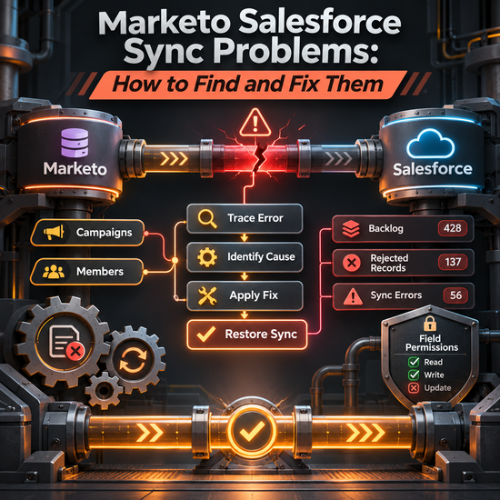
The Marketo Salesforce sync fails quietly. A lead never reaches Salesforce, a field stays blank, or a campaign shows no members, and nothing on screen says why.
This guide shows where to look first and how to fix the most common causes: fields the sync user cannot see, records Salesforce rejects, campaigns that will not map, a queue that falls behind, and a sync that stops. It assumes your connection is already set up.
Why Does the Marketo Salesforce Sync Break?
Marketo syncs with Salesforce in cycles, and each cycle pauses about five minutes before the next one starts. Most Marketo Salesforce sync problems fall into four groups: a field the sync user cannot see, a record Salesforce rejects, a campaign that will not map, a queue that falls behind, or a sync that stops. Each leaves a different trail, so follow the trail instead of guessing.
Work through them in this order:
- Sync Errors tab: Read the error type and the SFDC Return message.
- Activity Log: For one lead, check what Marketo logged.
- Field visibility: Confirm the sync user can see the field.
- Salesforce rules: Check Last Name, Company, and picklist values.
- Campaign prerequisites: Check campaign sync and statuses.
- Backlog and limits: Check the backlog trend, API usage, and the sync user password.
Setup choices cause many of these. Our Marketo Salesforce integration guide covers setup, and this guide covers what to do when the sync misbehaves.
Where to Find Marketo Salesforce Sync Errors
In Marketo Engage, click Admin, then Integration, then Salesforce, and open the Sync Errors tab. It lists errors from about the last five days, each labeled Record Level or Job Level. You can filter by date and error type, and export the list to a CSV file.
Each row shows when it failed, the error details, the error type, and the SFDC Return message. In some cases the message comes straight from Salesforce, so searching the exact text can help. Open a record-level error to see the Marketo and Salesforce IDs. Adobe describes the full view in its Salesforce Sync Errors documentation.
For one lead, open its Activity Log, because Marketo logs a failed record there. For email warnings, click the Notifications icon, choose Subscribe, and pick the CRM sync notification type. Adobe says these flag critical problems, such as a sync that is down.
Fields That Will Not Sync
The most common cause of Marketo Salesforce sync issues with fields is permission. Adobe’s knowledge base says the usual reason a field or value fails to sync is that the sync user cannot access that field.
To check, find the sync user’s login under Admin, Salesforce, Credentials. Your Salesforce admin holds the password, so ask them to log in as that user and open a lead or contact. If the field is missing, they review Field Permissions on the sync user’s profile and make the field visible. Adobe walks through this in its article on how to check if an SFDC sync user can see a field.
Error messages can point to the same cause. Adobe’s example is an INVALID_FIELD error on the All Day Event field of Salesforce events. Once an admin makes that field visible to the sync user’s profile, the error clears on the next sync.
Records Salesforce Rejects
Salesforce rejects a record when it breaks one of Salesforce’s own rules. The errors you see are FIELD_INTEGRITY_EXCEPTION or INVALID_OR_NULL_FOR_RESTRICTED_PICKLIST.
- Required fields: Salesforce always requires Last Name and Company, so a record missing either fails.
- Restricted picklists: Country and State picklists are the most common trigger. Salesforce rejects New York and accepts NY.
- The fix: Ask your Salesforce admin for the accepted values, then correct the Marketo values where they enter: forms, data management campaigns, and imports.
The Sync Person to SFDC flow action in a Marketo Smart Campaign sends one person to Salesforce without waiting for the regular cycle, when you assign a Salesforce owner or lead queue in the step. It does not repair a bad value, and Salesforce rejects the lead if Company or Last Name is missing.
Campaigns and Members That Never Appear
Check the prerequisites first. Campaign sync must be enabled, and the sync user must be a Marketing User in Salesforce. A Program maps one to one to a Salesforce campaign. When a person is in the Program but not in Salesforce, Marketo creates the member as a lead in Salesforce, and the Add to SFDC Campaign flow action creates the person first if needed. If a member is missing, confirm the person exists in Salesforce.
Then check statuses. If the Salesforce campaign and the mapped Program have incompatible statuses, you may see an error. Make the status lists match before you map them, and the Marketo Salesforce sync can move members both ways.
When the Marketo Salesforce Sync Runs Slow
By default, Marketo waits about five minutes between sync cycles. That is a pause after a cycle ends, not a schedule, and a cycle takes longer when more records need updating. A change can therefore take well over five minutes to appear.
On the Salesforce admin page, the Sync Backlog Trend shows the last five days, and Sync Throughput and Backlog shows each object. Backlog Status reads Growing when the backlog is higher than it was six hours earlier, and Normal otherwise. Check it before you assume the Marketo SFDC sync is broken, and use Sync Person to SFDC for a single urgent record.
When the Sync Stops or Hits Limits
Expired password: If the sync user’s Salesforce password expires, Marketo stops syncing, and it does not catch up on its own. Reset the password and security token in Salesforce, enter them under Admin, Salesforce, Edit Credentials, then create a batch campaign to sync the leads created during the gap.
API limits: Salesforce sets your daily API limit, and a large volume of changes can exceed it, which appears as Salesforce Sync Error: Daily API Limit Reached. Each Sync to SFDC flow step uses one API call per lead, so use it sparingly. In Salesforce, Company Information shows API Requests, Last 24 Hours.
Duplicates and Exclusion Lists
Marketo does not automatically de-dupe people who arrive from Salesforce, so duplicates come with the data. Our guide to resolving duplicate Marketo leads in Dynamics and Salesforce covers prevention and merging.
If the sync runs but the wrong people still get a campaign, check the field your suppression logic reads. Our post on the Salesforce exclusion list bug explains how a lead status rule misses converted contacts.
Keeping the Marketo Salesforce Sync Healthy
- Owner: Name one person who owns the sync and the sync user.
- Alerts: Subscribe to CRM sync notifications so failures reach you first.
- Weekly check: Open the Sync Errors tab once a week, not only after a complaint.
- Change control: Before adding a Salesforce field or rule, confirm the sync user can see it.
For the wider picture, see our Marketo hub guide on what the platform does and how to run it.
Conclusion
Most sync problems have a short list of causes: a field the sync user cannot see, a record Salesforce rejects, a campaign prerequisite that is missing, a queue that is behind, or an expired password. Start with the Sync Errors tab and fix the cause. Then give the Marketo Salesforce sync an owner so the next failure reaches someone quickly. If you want help with a stubborn sync, contact 4Thought Marketing or explore our Marketo consulting and integration services.
About 4Thought Marketing
We're a B2B marketing automation and AI consultancy with a thing for getting complex tech to actually work. Since 2008, we've helped hundreds of organizations across financial services, technology, manufacturing, and real estate get more from Eloqua, Marketo, and their CRM integrations. We serve our clients across marketing automation strategy, lead lifecycle, AI, compliance, preference management, and more. Explore our services or get in touch.
Frequently Asked Questions
Why is my Marketo Salesforce sync not working?
Open Admin, Integration, Salesforce, and the Sync Errors tab first. The cause is usually a field the sync user cannot see, a record Salesforce rejects, or a missing campaign prerequisite.
Where do I find sync errors?
Go to Admin, Integration, Salesforce, then the Sync Errors tab. It lists errors from about the last five days, and you can filter them by date and error type and export a CSV file.
Why is a field blank in Salesforce after the sync?
The sync user may lack permission to the field. Ask your Salesforce admin to log in as the sync user, check Field Permissions, and make the field visible.
How often does the sync run?
Marketo pauses about five minutes between cycles by default. The pause starts when a cycle ends, so changes can take longer to appear.
Why did the sync stop completely?
An expired sync user password is a common cause. Reset the password and security token in Salesforce, update them under Edit Credentials, then run a batch campaign for the gap.
How do I force one record to sync?
Use the Sync Person to SFDC flow action in a Smart Campaign. It sends one person right away when a Salesforce owner or lead queue is assigned, but it uses one API call per person, and Salesforce rejects the lead if Company or Last Name is missing.