Quick Takeaways
- AI pre-send checks are a process, not a switch.
- Eloqua Email Checker tests links, unsubscribe link and footers.
- Marketo Send Sample resolves tokens as a chosen person.
- Eloqua preview cannot show preview text or email clients.
- AI can help a reviewer read, never approve.
- Assign every check an owner before the send date.
Table of Contents
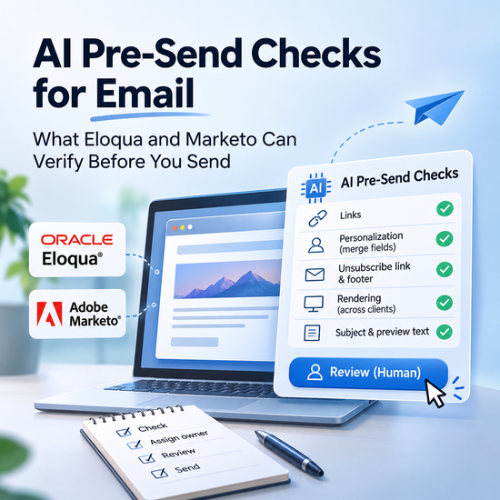
AI pre-send checks sound like a feature you can switch on, but in the Oracle and Adobe pages cited here no such check exists. What does exist is a set of test tools that catch some of the mistakes AI-written email makes and miss the rest.
That gap matters because AI-assisted copy fails in ways a rushed reviewer does not expect: a statistic that was never true, a link that changed, a subject line that promises more than the email delivers. A quick glance at the preview will not catch most of them.
This guide maps those failure modes to the checks Eloqua and Marketo actually offer, shows where a general-purpose AI assistant can help a human reviewer, and ends with a checklist your team can assign to named owners.
What AI Pre-Send Checks Cover for AI-Assisted Email
AI pre-send checks are the verification steps you run on AI-assisted email after it has been approved and before it is scheduled. They are the last email qa step, and they confirm that the facts, links, personalization, subject line and rendering survived the drafting process intact.
In the Oracle and Adobe pages cited in this article, no AI-powered pre-send check is described. The platforms offer test and preview tools, and your team supplies the judgment about what to look for. That is why AI pre-send checks are a process, not a feature.
This stage comes after the brief, the settings and the approval, which our guidance on AI email copy guardrails covers separately. It also sits inside the wider picture in our overview of AI in B2B email execution for Eloqua and Marketo teams.
The Failure Modes AI Adds to Your Checklist
AI pre-send checks add six failure modes to a standard email qa checklist, and each one needs a named check.
| Failure mode | Check | Where to run it |
|---|---|---|
| Invented or altered facts | Compare every claim, number and date with your claims list | Human reviewer |
| Changed or dropped links and merge fields | Open every link and confirm personalization resolves | Email Checker and Send Test in Eloqua; Send Sample in Marketo |
| Subject and preview text mismatch | Read the subject and first line together with the inbox preview | Send to real test clients |
| Missing unsubscribe link or web version | Run the compliance checks | Eloqua Email Checker |
| Rendering and dark mode | Preview, then test in your audience’s clients | Eloqua preview and notifications; Marketo Email Designer |
| Tone drift | Read against your brand voice sheet | Human reviewer |
Standard checks still apply. Our guides to the email QA testing process and a campaign QA checklist cover the general ground, and this article adds only what AI-assisted email changes.
Links need extra care because an AI rewrite can change anchor text and destinations. If your links carry tracking, confirm which method you use, and read our guide to UTM parameters versus native platform IDs for the trade-off.
What Eloqua Can Check Before You Send
Eloqua gives you three pre-send tools for email qa: the Email Checker, a test send and a preview. Oracle’s test email documentation describes the first two.
Run the Eloqua Email Checker
In the Design Editor, choose Actions > Send Test. In the Source Editor, choose Actions > Test Content. Select a test type of Email Checker, HTML Email or Text Email, pick a recipient and click Perform Test. Email Checker is the typical choice and the natural first step in AI pre-send checks for Eloqua.
The Eloqua Email Checker checks that an unsubscribe link and a web version are present and that links are correctly formatted, but it cannot judge whether a sentence is true. It also checks that headers and footers are applied correctly.
Know the limits of a test send
A test send goes only to contacts in your contact database, and the subject line arrives with *TEST* at the start. Test opens and clicks appear in email operational reports, not Insight reports. Oracle’s page does not discuss merge fields, dynamic content or link tracking in these tests, so check those details in your own instance. Resolve all draft errors first, because Oracle states they must be cleared before sending.
Use preview and notifications
Eloqua’s preview shows Desktop, Tablet and Mobile views, and you can preview as up to 10 contacts, which helps you check personalization. Oracle states you cannot preview in different email clients and that no email is sent during preview. For Design Editor emails, review the responsive-layout notifications before you schedule.
What Marketo Can Check Before You Send
Marketo’s main email qa tool before send is Send Sample, and the Email Designer adds previews. Adobe’s Send a Sample Email documentation describes the sample step.
Open the email, choose Email Actions > Send Sample, enter one or more addresses and click Send. You need the Access Database – Run Single Flow Actions permission. All recipients see every address, and the first address is the main recipient. For AI pre-send checks in Marketo, sample every email as a real person.
Tokens: In Marketo, a sample resolves My Tokens to program values unless you choose a specific person, so pick a person in the drop-down to see the personalization a real contact would receive.
Segments: For segment-based content, open the draft, click Preview, set View By to Segmentation, choose a segment and click Send Sample.
Designer previews: The Email Designer has a live view for device sizes, which Adobe calls a generic preview whose final rendering may vary by email client. Its dark mode preview applies a full color invert to everything except images and icons, and Adobe describes it as a simulation. Adobe recommends testing in the clients your audience uses, and its Email rendering option, powered by Litmus, simulates major clients.
Check Preview Text and Subject Lines on Real Clients
Preview text appears in the inbox beneath the sender and subject line, and Eloqua’s preview tool cannot display it. Oracle’s guidance is to validate preview text with a test send to your target clients, so it deserves its own step in AI pre-send checks.
Supported length varies by client. Oracle states that clients support roughly 35 to 120 characters and that not all Outlook clients support preview text. If AI drafted it, confirm it fits that range and does not repeat the subject line.
Read the subject line, the preview text and the first sentence of the body together. AI-generated subject lines can promise more than the email delivers, so confirm that the email delivers what the subject promises. For client-by-client habits, see our guide to email preview testing.
Where AI Helps a Reviewer Check Email Before Send
A general-purpose AI assistant can help a human reviewer read a draft faster during email qa before a send in Eloqua or Marketo, and within AI pre-send checks it should never be the approver. This is our recommendation, not a documented feature of either platform.
Extract claims: Ask an approved AI assistant to list every statistic, date, product name and promise in a draft, so your reviewer can check each one against the claims list.
Compare with the brief: Ask it to flag sentences that go beyond the brief you wrote, which surfaces invented detail.
Read for consistency: Ask it to compare the subject line with the body for conflicting promises.
Keep data out: Paste only draft text with no personal data, unreleased figures or contact details, and use only tools your company has approved.
The reviewer still opens the links, runs the test send and signs off. An AI assistant that finds nothing has not proved the email is safe.
Build Your Pre-Send Checklist
AI pre-send checks work when every line has an owner and a stopping rule, and a plain email qa checklist makes that easy to enforce. Use this order:
1. Facts (reviewer): Check every claim against the claims list.
2. Links and personalization (marketing operations): Open every link and confirm tokens or field merges resolve in a test send.
3. Compliance elements (marketing operations): Run the Email Checker, or confirm the unsubscribe link and web version in your Marketo sample.
4. Preview text and subject (reviewer): Validate both on real clients.
5. Rendering (designer): Check device views and dark mode, then your audience’s clients. Our guide to responsive email design covers layout rules, and accessible emails covers accessibility, which Adobe says its testing tools are not specifically designed to check.
6. Sign-off (approver): One named person confirms the first five and records it.
If the email is the first from a new sender, read our guide to email deliverability best practices before you schedule it.
Conclusion
AI pre-send checks are a process your team builds, because the Oracle and Adobe pages cited here describe test and preview tools rather than an AI check. Use the Eloqua Email Checker, a test email and preview in Eloqua, Send Sample and Designer previews in Marketo, and a human reviewer for facts and tone. Let AI help the reviewer read, never approve. If you would like help building this email qa process for your Eloqua campaign or Marketo program, 4Thought Marketing can help.
About 4Thought Marketing
We're a B2B marketing automation and AI consultancy with a thing for getting complex tech to actually work. Since 2008, we've helped hundreds of organizations across financial services, technology, manufacturing, and real estate get more from Eloqua, Marketo, and their CRM integrations. We serve our clients across marketing automation strategy, lead lifecycle, AI, compliance, preference management, and more. Explore our services or get in touch.
Frequently Asked Questions
Do Eloqua or Marketo offer AI pre-send checks?
In the Oracle and Adobe pages cited in this article, no AI-powered pre-send check is described. Both platforms offer test and preview tools instead, so your team builds the checks around them.
What does the Eloqua Email Checker test?
The Eloqua Email Checker checks that links are correctly formatted, that compliance elements such as an unsubscribe link and a web version are present, and that headers and footers are applied correctly. It does not judge whether your claims are true.
How do I run a test send in Eloqua?
In the Design Editor, choose Actions > Send Test. Pick a recipient from your contact database and a test type, then click Perform Test. Results appear in the bottom pane, and the subject line arrives with *TEST* at the start.
How do I check personalization in a Marketo sample?
Choose Email Actions > Send Sample and enter your addresses. My Tokens resolves to program values, so pick a specific person in the drop-down to resolve tokens as that person.
Why check preview text on real clients?
Eloqua’s preview tool cannot display preview text, and clients support roughly 35 to 120 characters. Oracle advises validating it with a test send to your target clients, which makes it a standing item in AI pre-send checks.
Can AI approve an email before send?
No. A general-purpose AI assistant can help a reviewer extract claims and spot inconsistencies, but a named person must open the links, run the test send and sign off in your email qa process.