Quick Takeaways
- Marketo email templates start with choosing the right editor.
- Email Designer is the newer editor; Editor 2.0 is the previous one.
- Email Designer templates cannot be used in the classic editor.
- Module changes do not update emails already built.
- In Editor 2.0, create a new template rather than re-approving one over 500 emails.
- Give every template an owner and an approval step.
Table of Contents
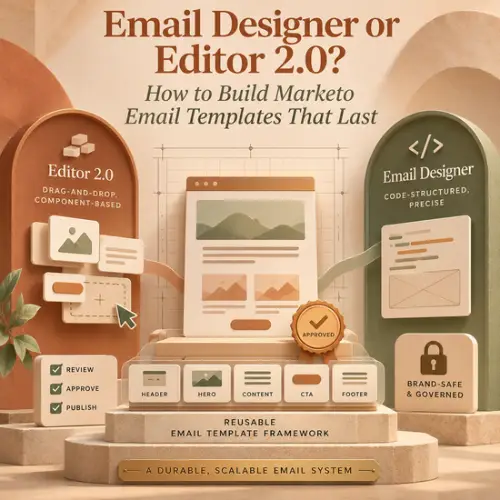
Marketo email templates look like a design choice, but they are really an operating decision. Pick the wrong editor, or let anyone change the template, and every email built from it inherits the problem.
This guide compares Adobe’s two editors, shows how to build Marketo email templates in each, and sets the habits that keep them reliable.
What Are Marketo Email Templates?
A Marketo email template is a reusable layout that emails inherit. It fixes the structure and brand elements and leaves defined areas editable, so each marketer writes content without rebuilding the design. Templates live in Design Studio, and every email starts from one, so a template choice repeats across every send. In Email Designer, a template is built from structures and content components. In Editor 2.0, it is HTML with editable regions.
Email Designer or Email Editor 2.0?
Adobe’s documentation calls the newer editor Email Designer and the previous editor Email Editor 2.0. Both editors support saved templates and starter templates. Email Designer adds content locking, brand themes, and fragments, which take the place of modules, plus drag and drop for structures and content. It also integrates with Litmus and SpamAssassin spam checks. Adobe lists every difference in its Email Designer and Email Editor feature comparison.
Plan around one rule: templates are not interchangeable. A template made in Email Designer cannot be referenced in the classic editor. You can import an existing Marketo template into Email Designer, but only approved or shared templates qualify, snippets do not work there, and classic variables are not available at the email level. Adobe labels the import feature Beta, so review every imported template and send a proof.
If your team writes templates in HTML and relies on modules and snippets, keep those templates in Editor 2.0 and plan Email Designer for new builds. If you want locked brand elements and drag and drop for marketers who do not code, start in Email Designer.
Our guide to the new Adobe Marketo Engage email editor covers the rollout, and our Marketo image to email template post covers turning a design image into a draft.
How to Build Marketo Email Templates
Each Marketo email template builder works differently. Email Designer is drag and drop, and Editor 2.0 is code first.
In the Marketo Email Designer
Open Design Studio, choose Email Templates (New Editor), and click Create template. Start from scratch, import an HTML file or zip, or pick one of four sample templates. Imported HTML starts in Compatibility mode, where you can only change text, links, and assets, so use the HTML converter to unlock Designer components. The n:n column component offers three to 10 columns, and each column must be at least 10 percent of the structure’s width. Fragments render in a template but cannot be edited there, because the source fragment controls the content. Add personalization tokens with fallback text, and set each link to track with mkt_tok, track without it, or not track.
In Email Editor 2.0
Open Design Studio, click New, choose New Email Template, name it, and click Edit Draft. Editable areas come from classes in the HTML: mktoText for rich text (mktEditable is legacy), mktoImg, mktoSnippet, and mktoVideo. Declare variables in the head with meta tags such as mktoString, mktoList, mktoColor, and mktoBoolean, and reference them as ${id}. Each ID must be unique and may use only letters, numbers, dashes, and underscores. Modules sit inside a single container, and class names are case sensitive, so mktotext will not register.
The editor converts color values to lowercase, so use lowercase names or hyphens. Adobe documents every element on its Email Template Syntax page. You can also save an existing email as a template from the Email Actions menu, but variable values do not carry over, and modules carry over only if they sit in the email body. Marketo Support is not set up to troubleshoot custom HTML, so involve a developer.
How to Govern Your Marketo Email Templates
- Ownership: Name one owner for each template family, and limit who can create or edit templates.
- Naming and approval: Use one naming convention, and approve a template only after a Send proof test.
- Testing: Preview on desktop, mobile, and plain text, then send a proof. Adobe advises a proof over preview for imported templates.
- Locking: In Email Designer, content locking lets you lock structures and components inside a template.
- Personalization: Standardize tokens and defaults with our Marketo tokens guide. When tokens are not enough, see our velocity scripts guide.
- Register: Keep a short list with each template’s name, owner, editor, last review date, and where it is used.
- Scale: In Editor 2.0, re-approving a template used by over 500 emails could cause performance issues, so create a new template instead.
How to Maintain Marketo Email Templates
Review each template once a year, and duplicate it before a major change so you keep the original to compare. Confirm that links, brand elements, and tokens still work, and send a proof. Changes to template modules do not reach emails already created from the template, so decide whether to rebuild those emails. Template alerts do not block email creation, but they can flag problems to fix before sending.
In Email Designer, the Used By tab shows where a template has been used, so you can retire the ones nobody needs. Deletion cannot be undone, and you can delete up to 20 templates at once. Our guide to custom email templates covers building a brand-safe library. For the wider picture, see our Marketo hub guide.
Conclusion
Marketo email templates stay reliable when you choose the editor on purpose, build with its own rules, and give every template an owner. Review them yearly, retire what nobody uses, and test before you approve. If you want a second set of eyes on your template library, contact 4Thought Marketing or explore our Marketo consulting and integration services.
About 4Thought Marketing
We're a B2B marketing automation and AI consultancy with a thing for getting complex tech to actually work. Since 2008, we've helped hundreds of organizations across financial services, technology, manufacturing, and real estate get more from Eloqua, Marketo, and their CRM integrations. We serve our clients across marketing automation strategy, lead lifecycle, AI, compliance, preference management, and more. Explore our services or get in touch.
Frequently Asked Questions
What are Marketo email templates?
They are reusable layouts that emails inherit, with fixed structure and editable areas. You manage them in Design Studio.
What is the difference between Email Designer and Email Editor 2.0?
Email Designer is the newer editor, with content locking, brand themes, and fragments. Email Editor 2.0 is the previous editor, built on template syntax.
Can I use my old templates in Email Designer?
You can import approved or shared Marketo templates. Snippets and classic variables do not carry over, so review each one.
Are there free Marketo email templates?
Adobe ships starter templates in its editors, including four sample templates in Email Designer. 4Thought Marketing does not give templates away.
How many emails can use one template?
In Email Editor 2.0, Adobe says re-approving a template used by over 500 emails could cause performance issues. Create a new template instead.
Do template changes update existing emails?
Changes to template modules are not pushed to emails already created from the template.